Browsing & Invoking Tools
Overview
The Tools page lists every tool exposed by your active MCP connections. Tools are the primary way MCP servers expose functionality — from web search to file I/O, database queries to API calls.
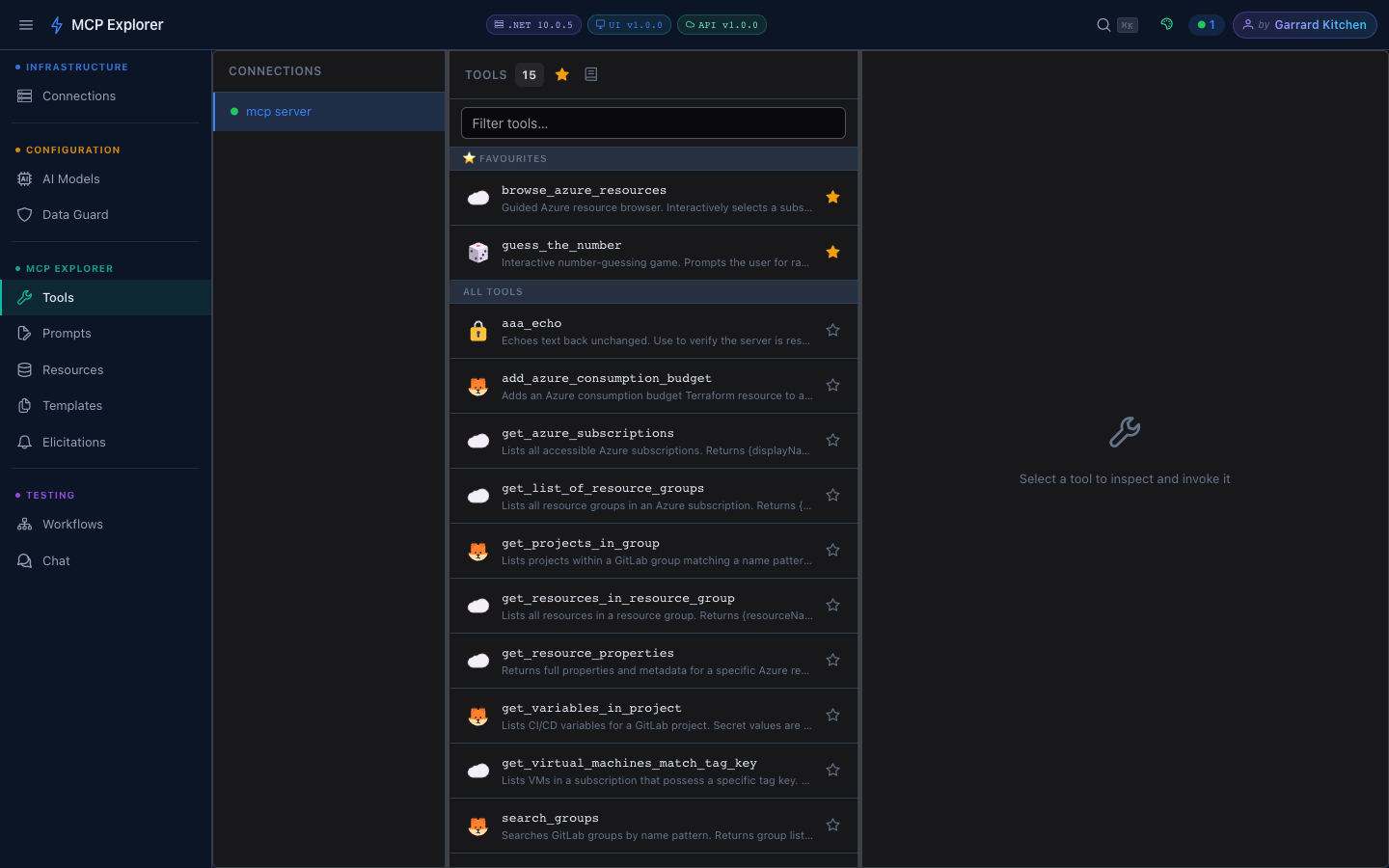
Select a connection on the left to load its tools. Each tool shows its name and description. The active tool’s parameter form opens in the right panel.
Finding Tools
- Search bar — type any keyword to filter tools by name or description in real time
- Connection filter — show tools from one specific server or all servers
- Favourites — star tools you use often; toggle “Show favourites first” to pin them to the top
Invoking a Tool
- Click any tool card to expand it
- Fill in the parameter form — fields are generated dynamically from the tool’s JSON Schema
- Click Run (or press
Ctrl+Enter) - The response appears inline below the form
Parameter Types
| Schema Type | UI Control |
|---|---|
string | Text input |
number / integer | Number input |
boolean | Toggle |
enum (≤3 values) | Radio buttons |
enum (>3 values) | Dropdown |
object | JSON editor |
array | Multi-value input |
Inspecting Responses
Responses are rendered inline in the JSON viewer with syntax highlighting and an interactive tree. You can expand/collapse nodes, copy to clipboard, and search within the response.
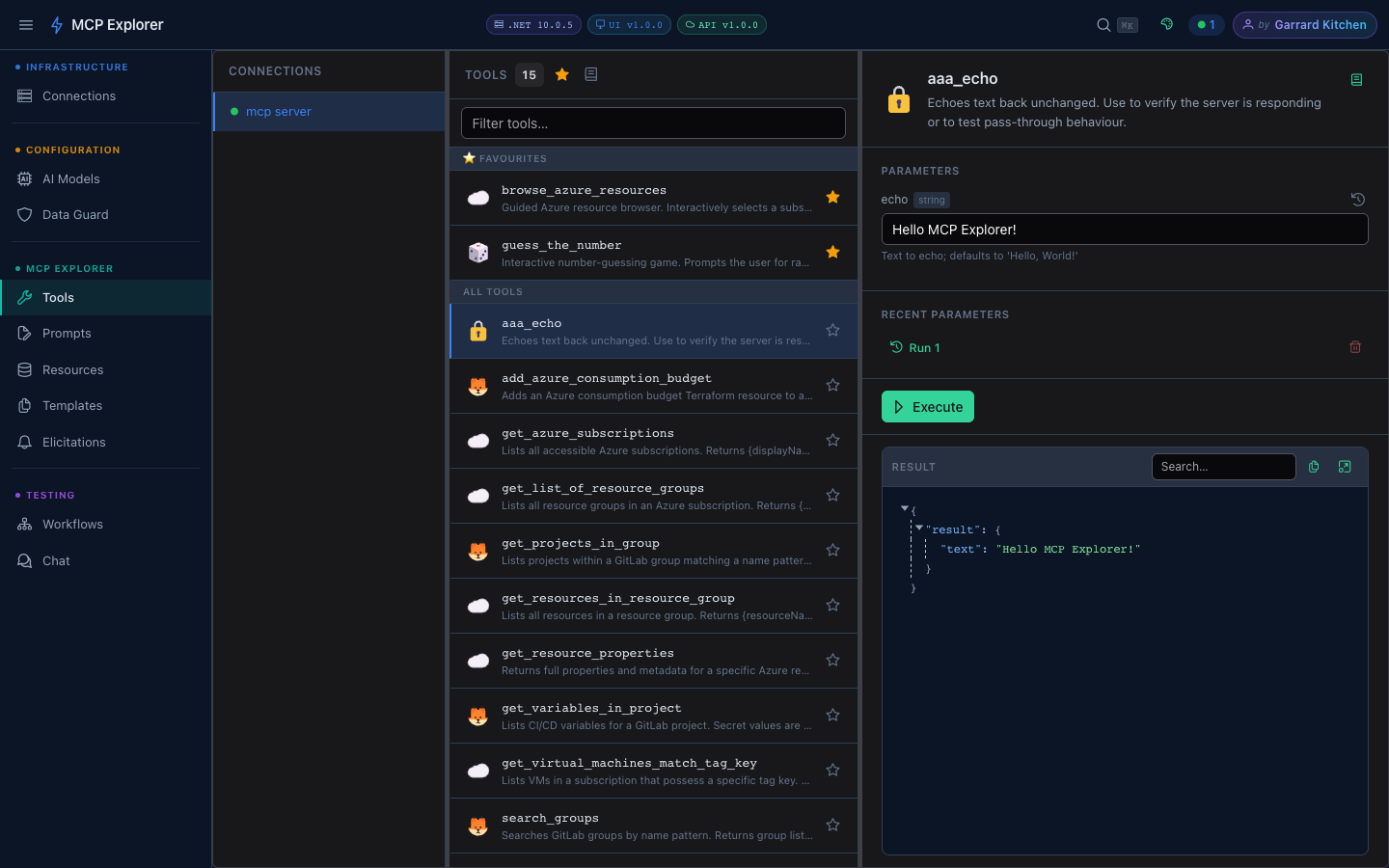
The JSON viewer renders tool responses as an interactive tree. Expand any node to drill into nested objects.
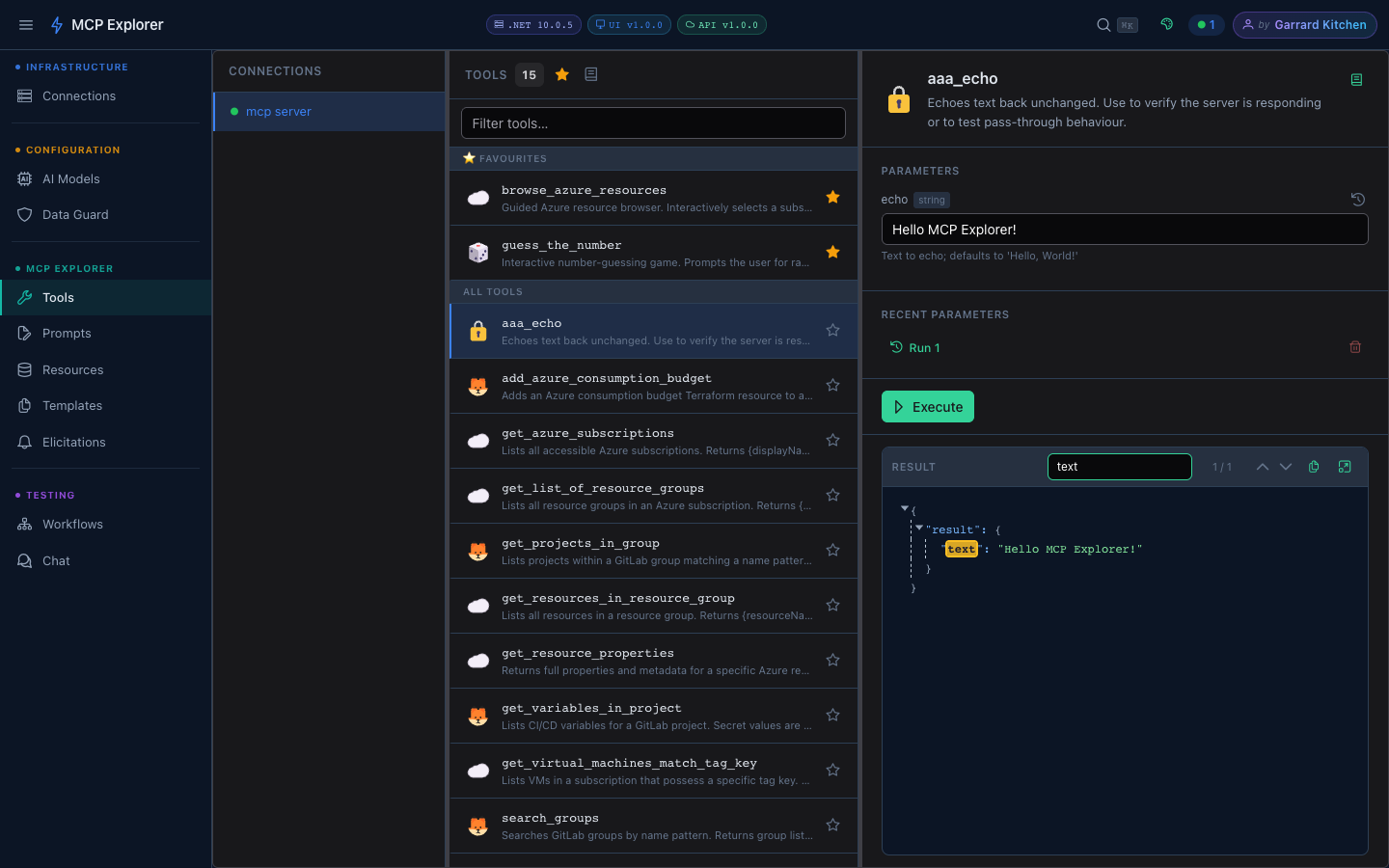
Type in the search box to highlight matching keys and values in the JSON tree.
Tool Documentation
Every tool has auto-generated reference documentation derived from its JSON Schema. Click the book icon (📖) in the tool header to open the docs dialog for the selected tool.
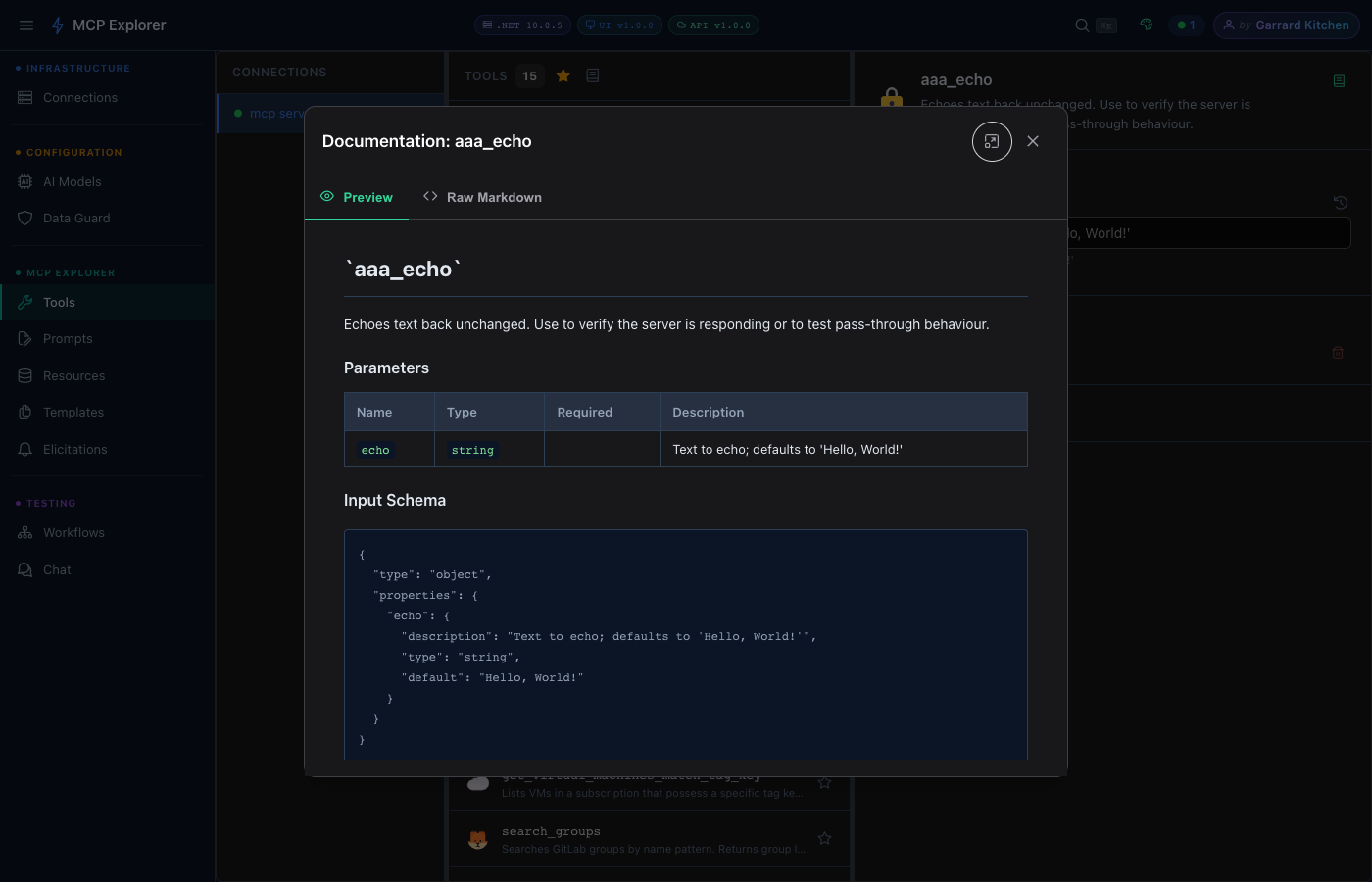
Single-tool docs: rendered Markdown preview with a parameter table, description, and example usage. Switch to the Markdown tab to copy the raw source.
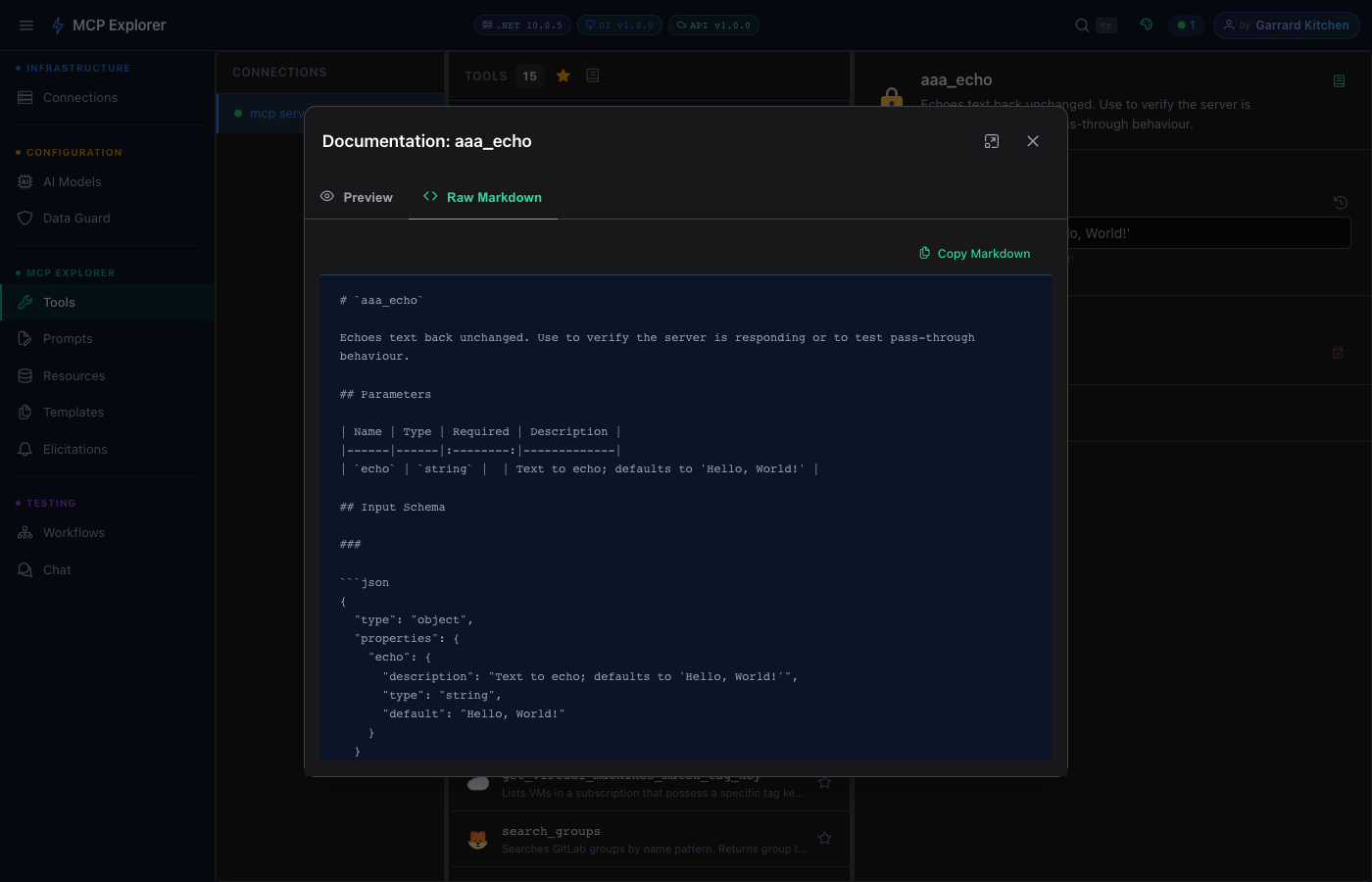
The Markdown tab shows the raw source — click Copy Markdown to paste it into any wiki, README, or AI prompt.
To generate a combined reference for all visible tools, click the book icon in the toolbar above the tool list (next to the search bar). This produces a single document covering every currently filtered tool.
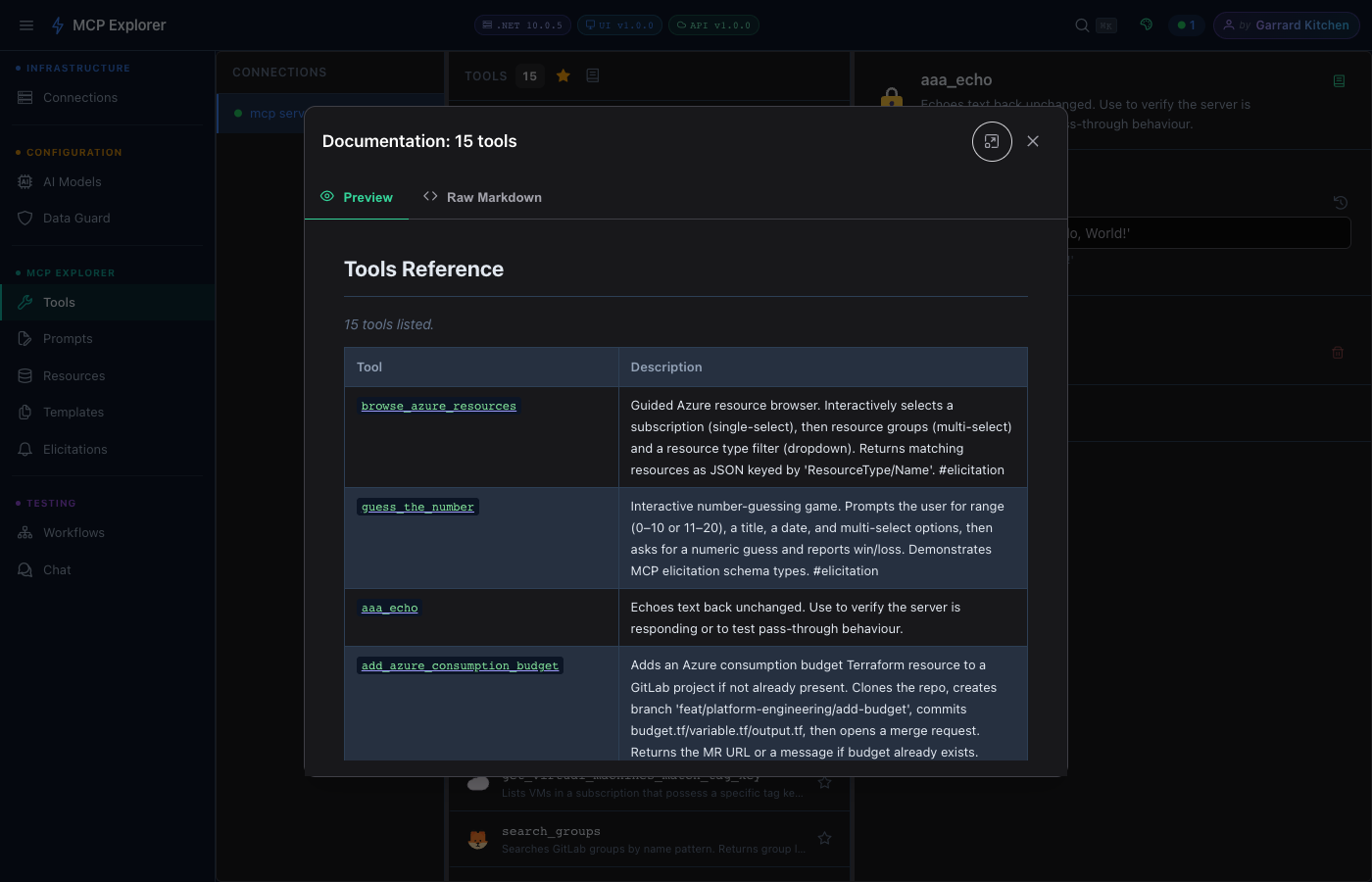
The bulk docs dialog generates a single Markdown reference for all visible tools — useful for sharing a server’s full API surface with teammates or feeding into an LLM.
Elicitation
Some tools request additional input mid-execution (the MCP elicitation feature). When this happens, an inline prompt appears asking for the required value before the tool continues.
Sensitive Data Masking
If a tool parameter is detected as sensitive (API keys, passwords, tokens), MCP Explorer:
- Masks the value in the UI with
●●●●●●●● - Shows a reveal toggle to view it temporarily
- Never logs or persists the raw value
Retry & Reconnect
If a tool call fails due to a dropped connection, a Retry button appears. MCP Explorer will attempt to reconnect and re-invoke the tool automatically.