Using Prompts
Overview
MCP Prompts are parameterised message templates that MCP servers expose. They let you capture common workflows — code review patterns, data analysis templates, document generators — and invoke them with a few inputs.
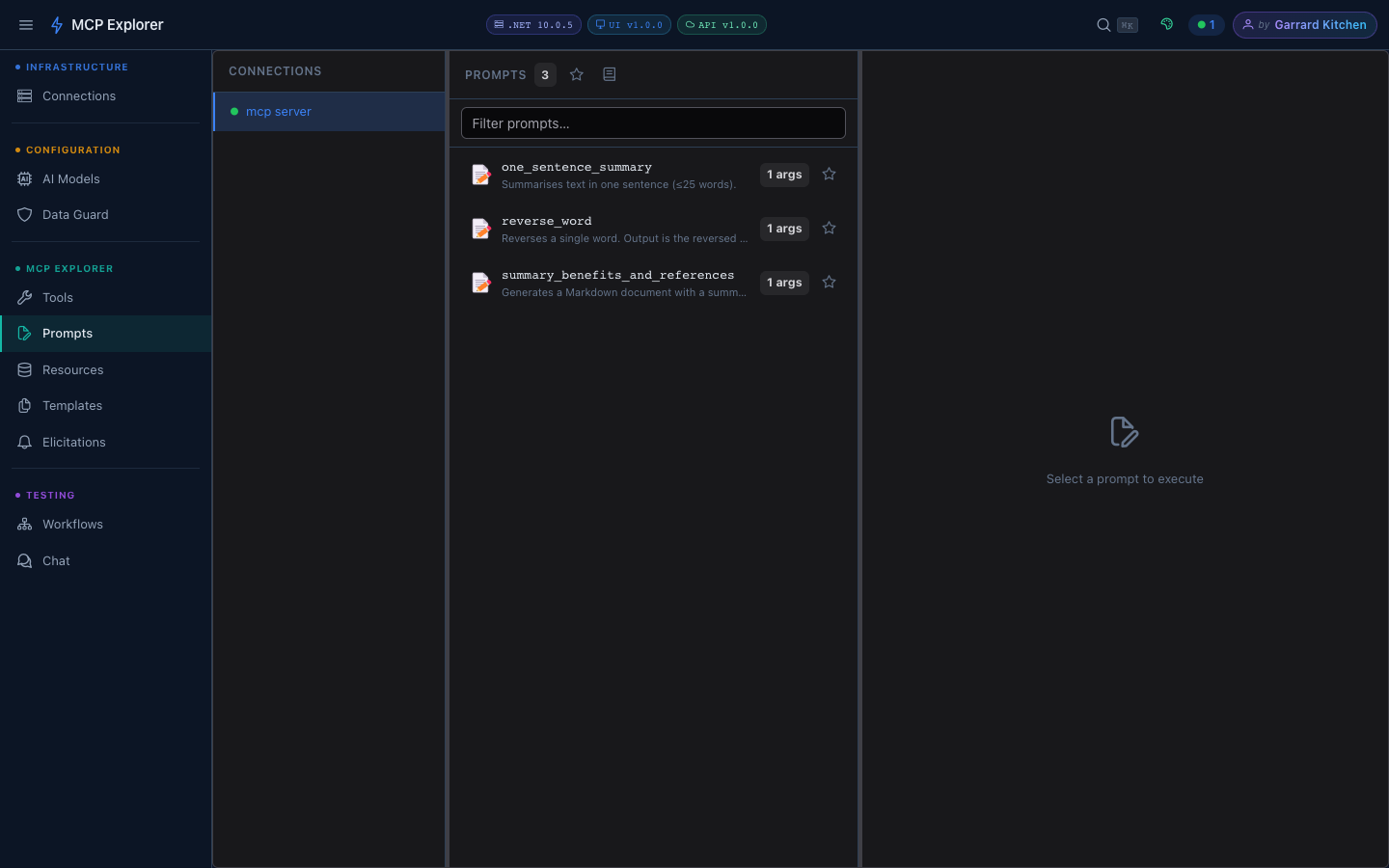
Select a connection to load its prompts. Each prompt shows its name, description, and argument count.
Executing a Prompt
- Click a prompt to open its detail panel
- Fill in any required arguments
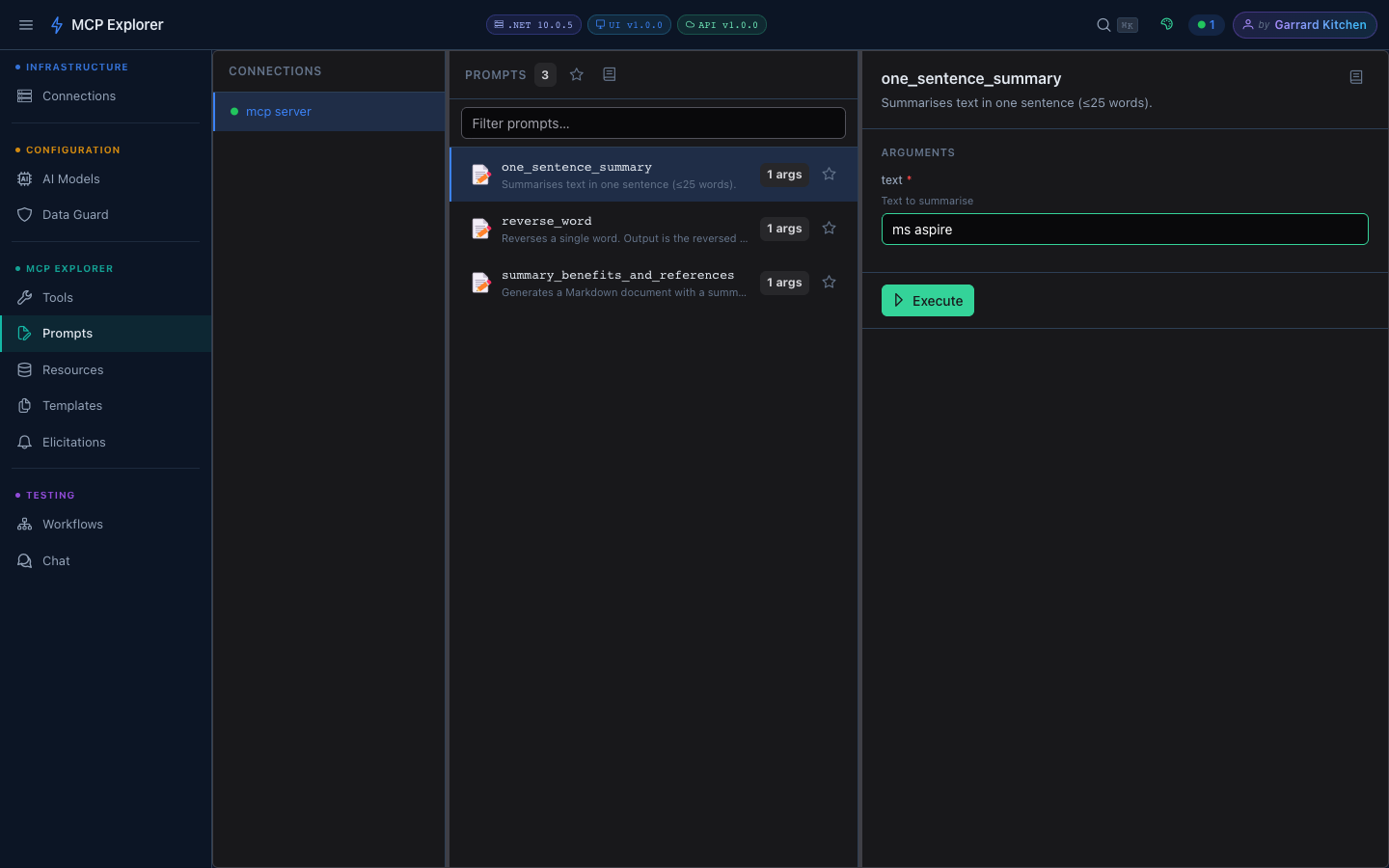
Each prompt argument has a label, description, and validation indicator. Fill in the values and click Execute.
- Click Execute — the rendered MCP messages appear as JSON in the result panel
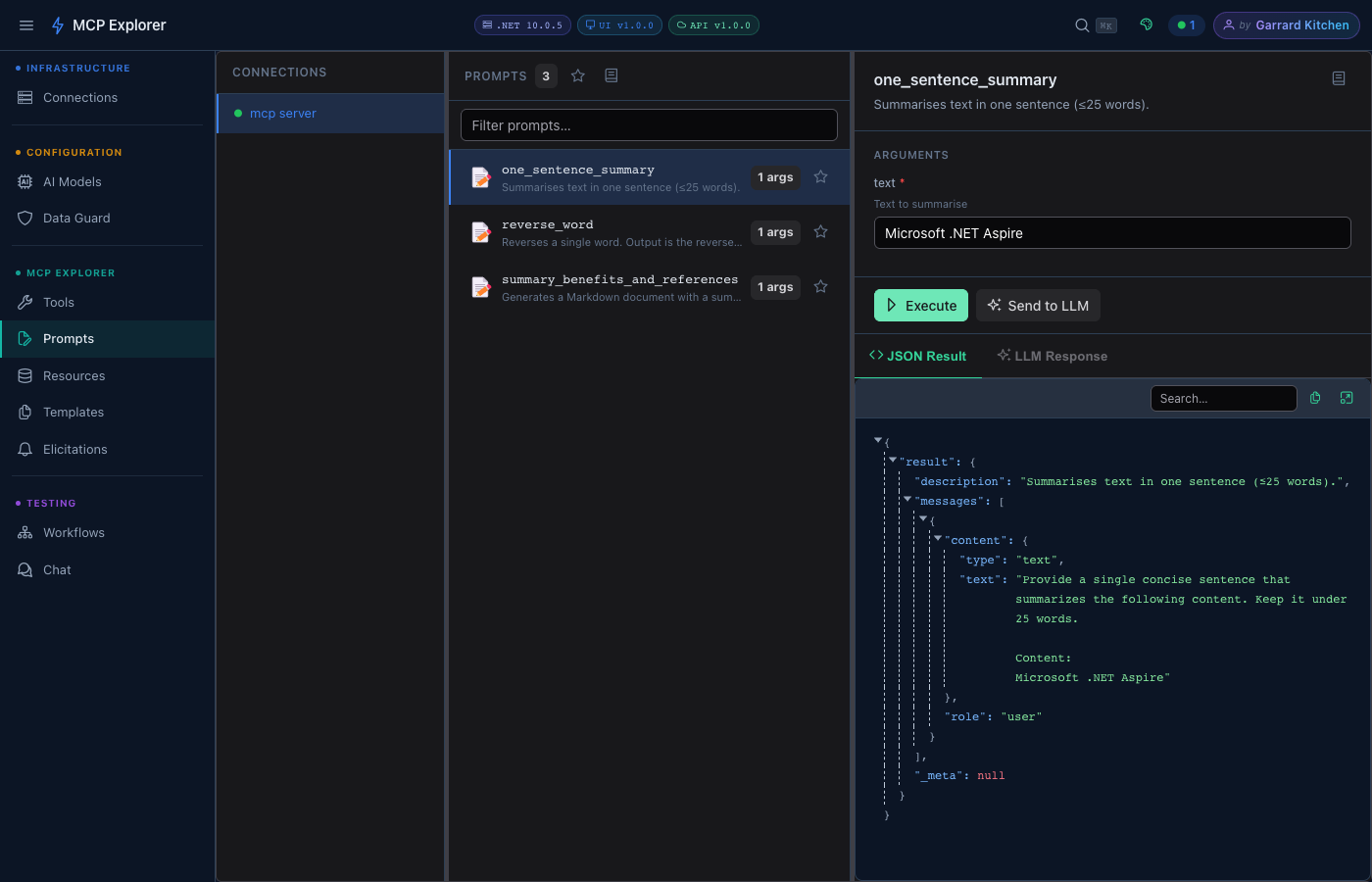
After execution, the result is displayed inline. The Send to LLM button appears in the result toolbar — click it to pipe the prompt messages directly to your configured LLM.
- Click Send to LLM — a model picker popover appears
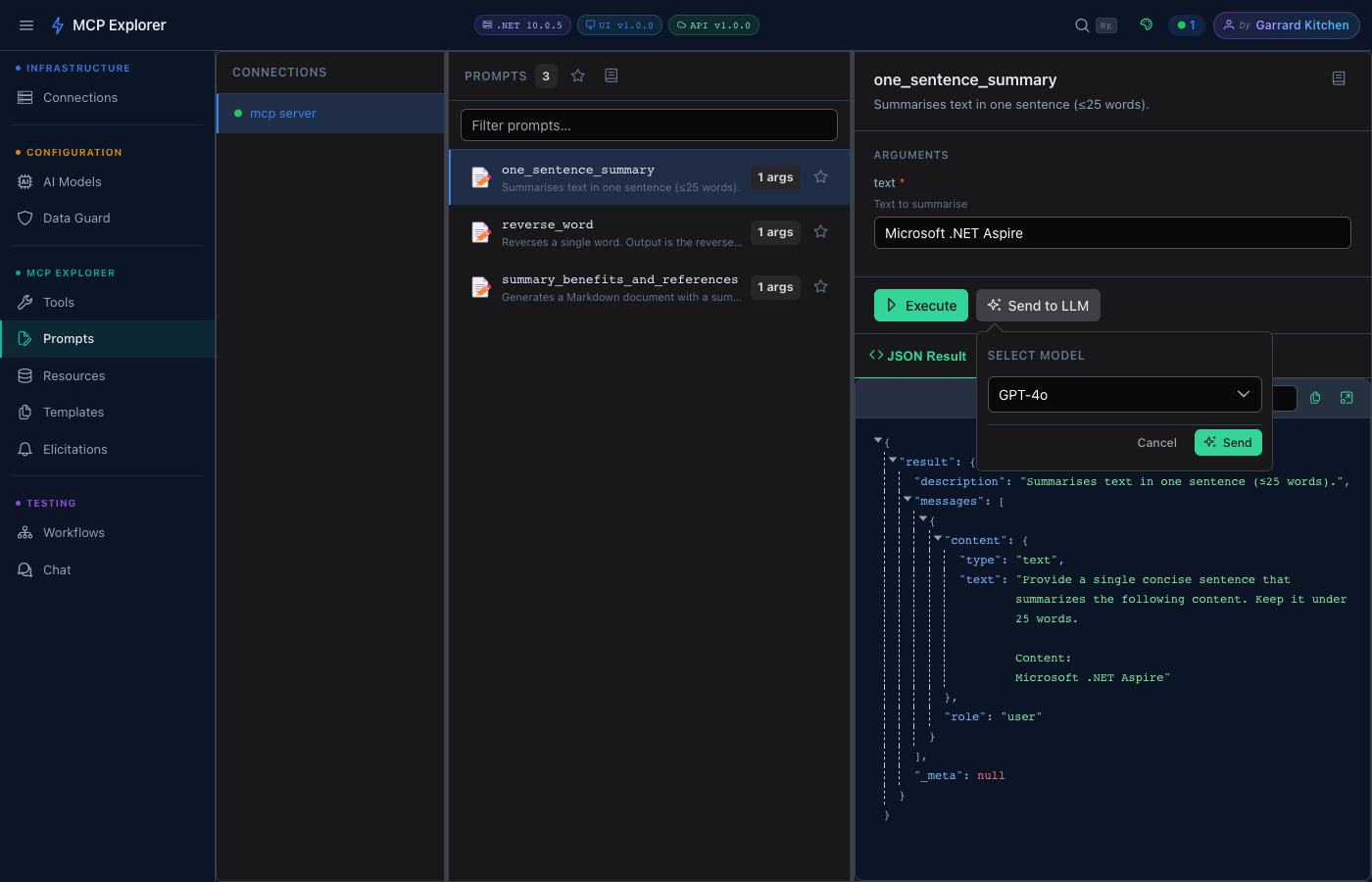
Choose a model from the dropdown (your configured LLM providers are listed here — GPT-4o is the default) and click Send to stream the response.
- The LLM Response tab activates with the streamed result
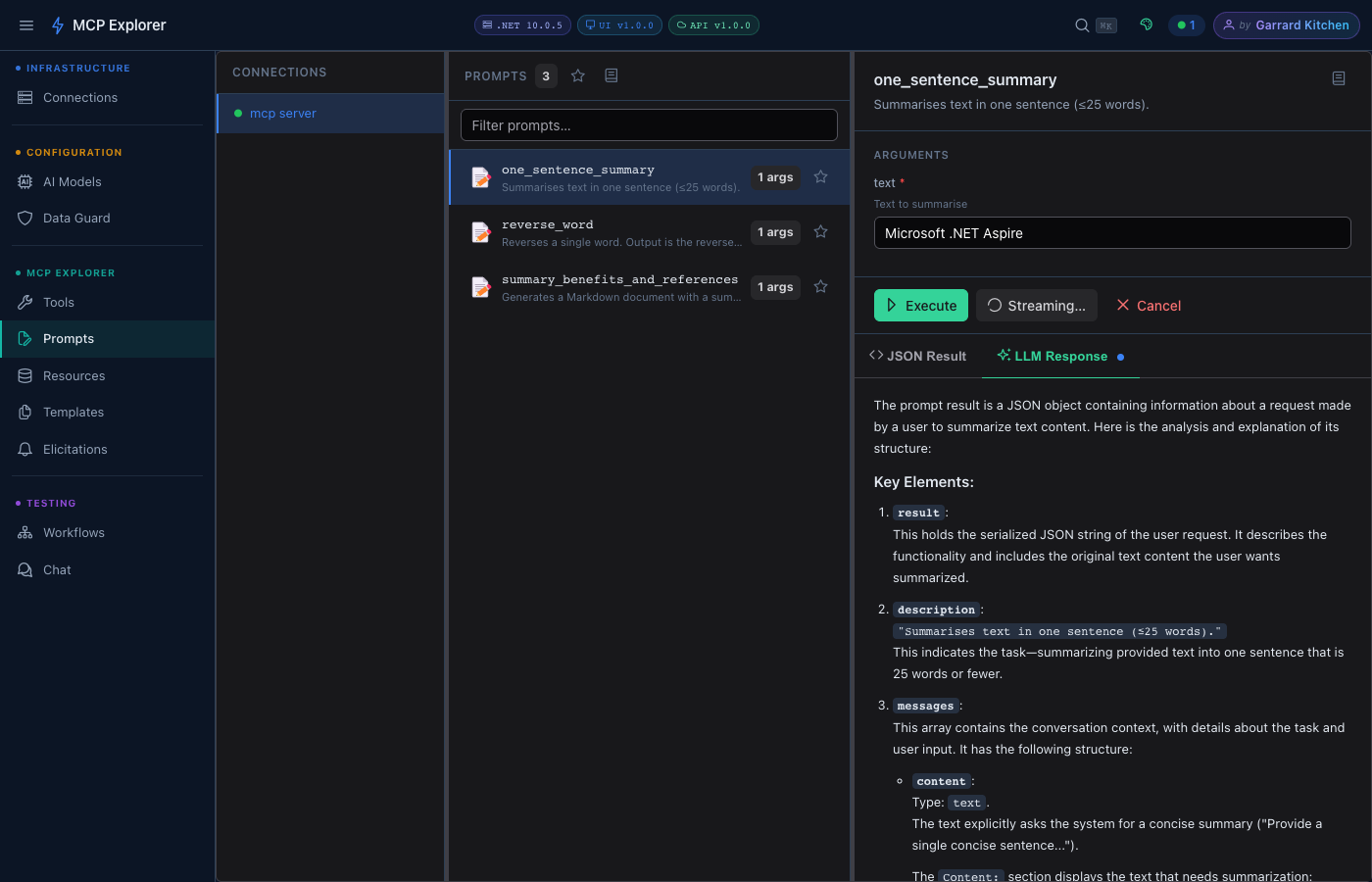
The LLM Response tab shows the streamed reply from GPT-4o. Results are rendered as Markdown with syntax highlighting.
Prompt Arguments
Arguments are generated dynamically from the prompt’s schema. Each field shows:
- A label and description (from the server schema)
- Validation (required vs optional)
- Inline error messages
Document Generation
The summary_benefits_and_references prompt demonstrates the document generation capability — it produces a full Markdown document with a summary, key benefits, and references for any topic.
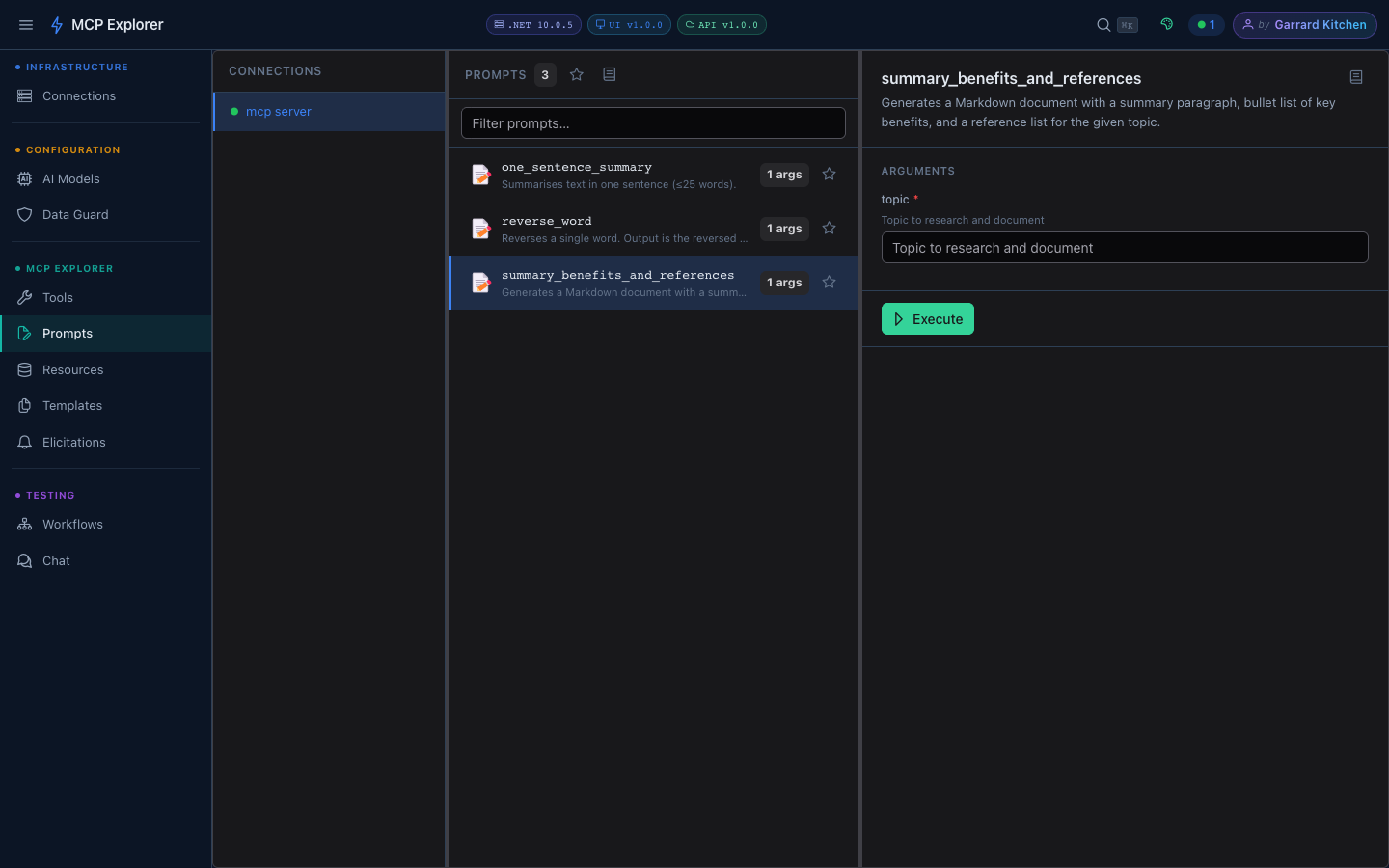
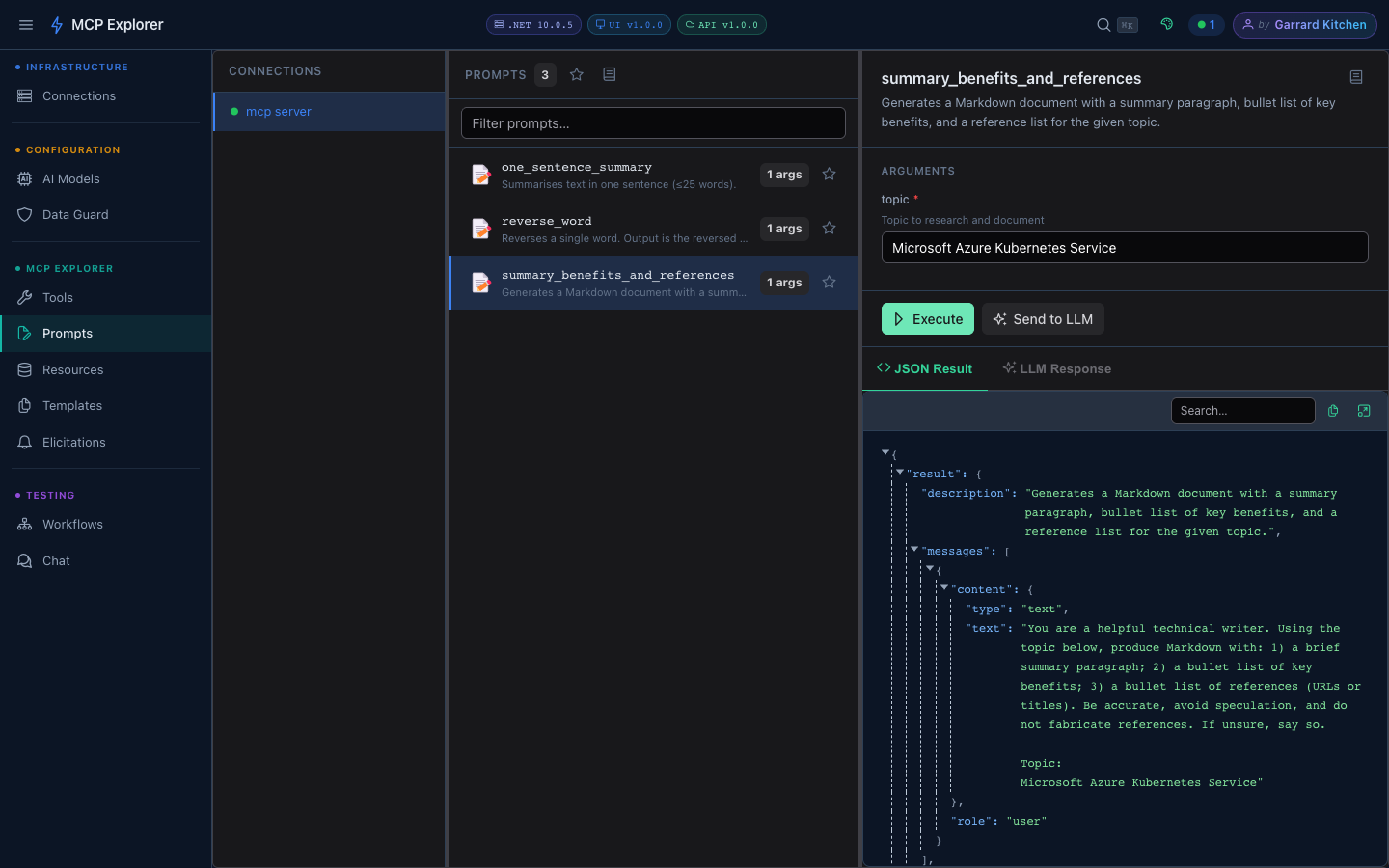
The document prompt generates structured Markdown with a summary paragraph, benefit bullets, and reference list — ready to copy or pipe to an LLM.
Favourites
Star any prompt to mark it as a favourite. Toggle Show favourites first in the toolbar to pin starred prompts to the top of the list. This preference is persisted across sessions.
Markdown Rendering
Prompt output is rendered as Markdown, including:
- Code blocks with syntax highlighting
- Tables
- Inline formatting
Send to Chat
After executing a prompt, the Send to Chat button opens the Chat view with the prompt result pre-loaded as the conversation context — letting you continue the interaction with any configured LLM.