Collections
Overview
Collections group one or more HTTP API endpoints together so they can be run as a single regression suite. Each run compares the live response schema against a saved baseline and surfaces breaking changes, schema drift, and latency regressions — in the browser or from CI via the CLI.
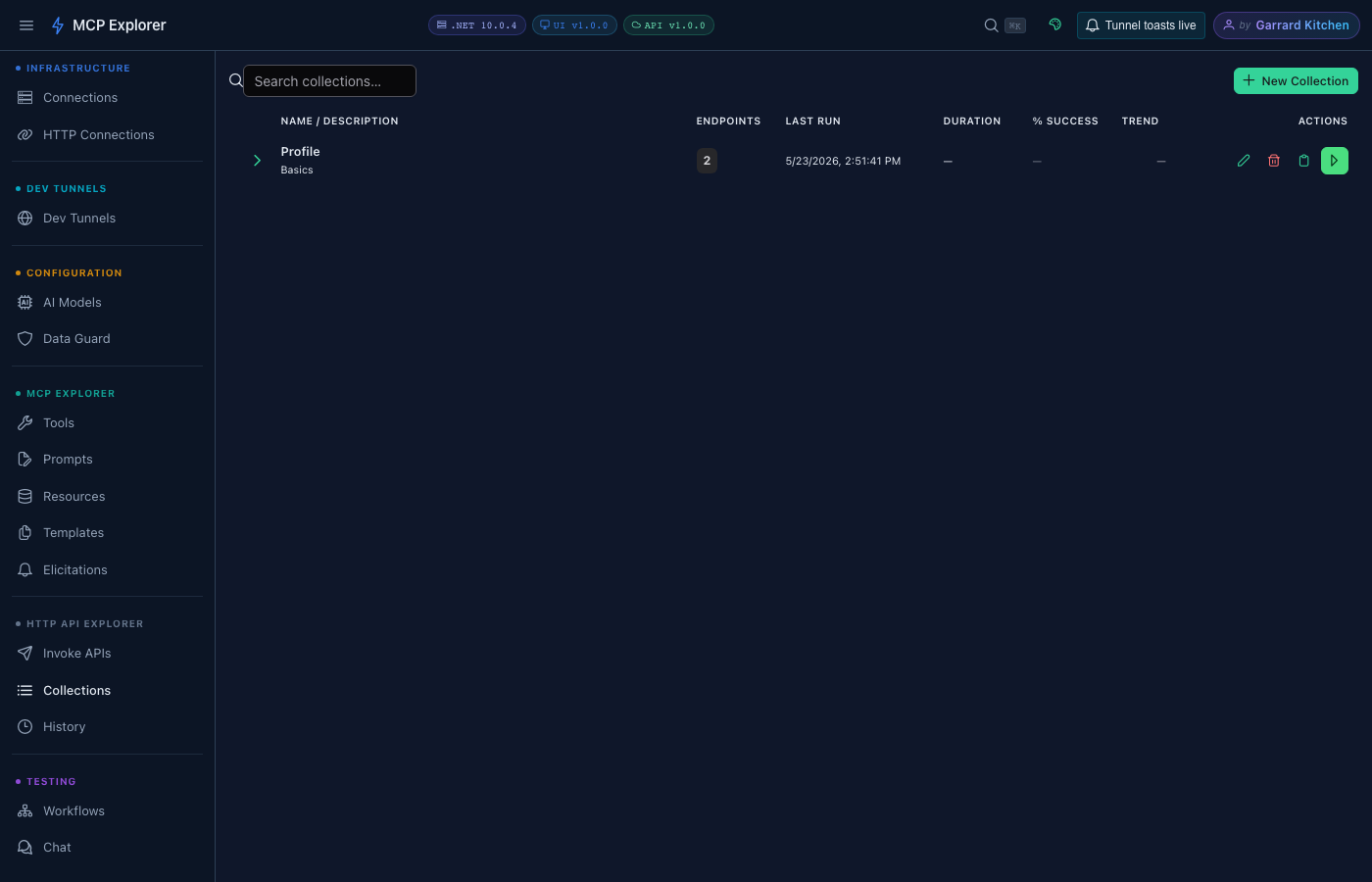
The Collections view lists each collection with its endpoint count, last run stats (time, duration, pass %), and action buttons.
Creating a Collection
- Navigate to HTTP API Explorer → Collections.
- Click New Collection in the toolbar.
- Give the collection a name and optional description.
- Add endpoints from your saved HTTP API definitions.
- Click Save.
Running a Collection
Click the ▶ Run button on any collection row to execute all its endpoints in sequence.
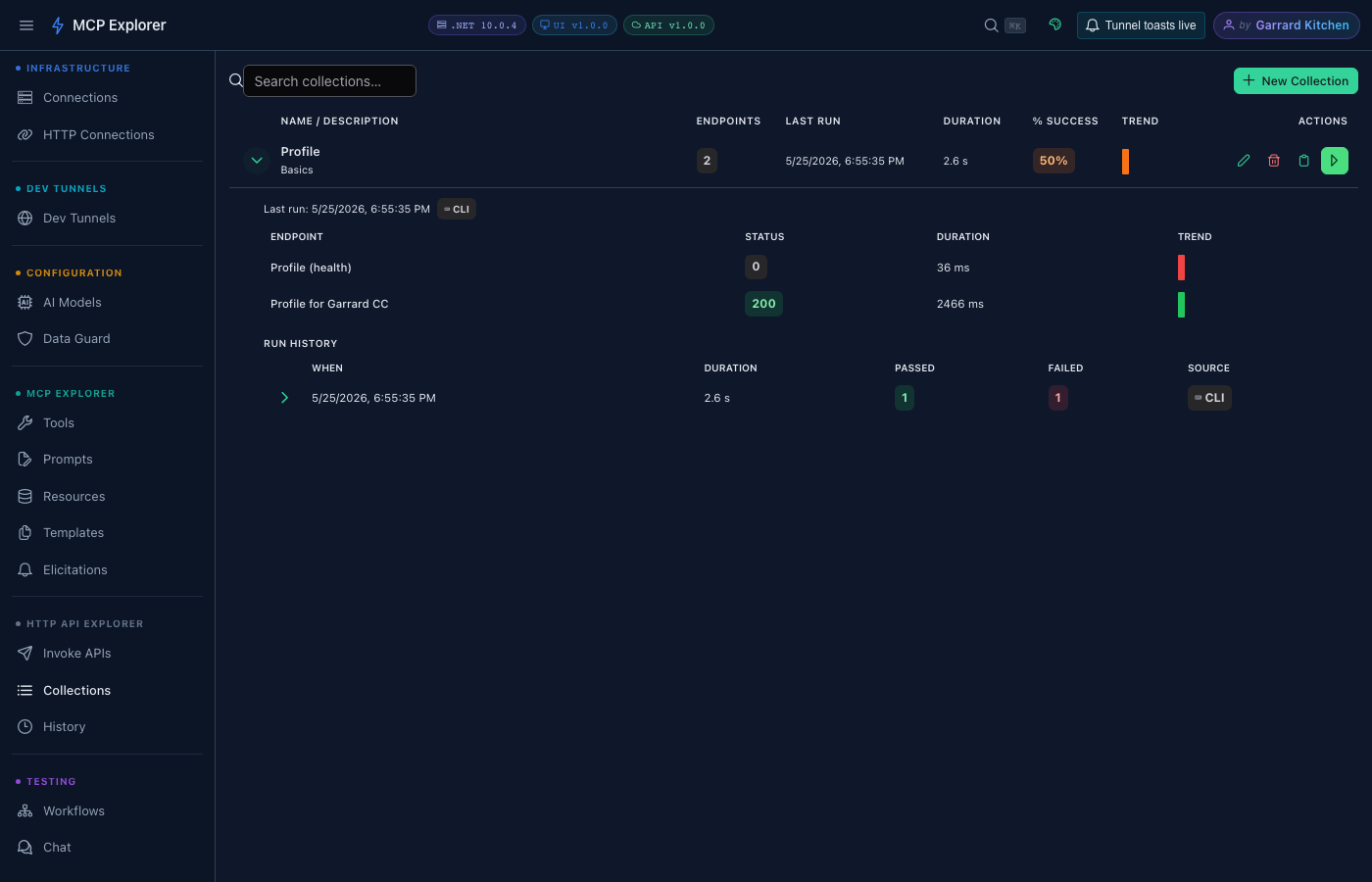
After each run, MCP Explorer:
- Persists aggregate stats — last run time, total duration, passed/failed counts — on the collection object, so stats survive page reloads without replaying history.
- Persists per-endpoint summaries — status code, latency, schema comparison result, and error message for each endpoint in the run.
- Writes a history entry — appended to
HttpApiCollections/{collectionId}/history.jsonlfor long-term trend analysis.
Schema Comparison Badges
Each endpoint result is decorated with one of:
| Badge | Meaning |
|---|---|
| ✅ Pass | Status OK, schema matches baseline |
| ⚠️ Drift | Schema changed but not breaking (new optional fields) |
| 🔴 Breaking | Required fields removed or types changed |
| ❌ Error | Request failed (network error, timeout) |
+ / - / ~ badges show added, removed, and changed properties respectively.
Collection Run History
Expand any collection row using the chevron toggle on the left to reveal the Run History table.
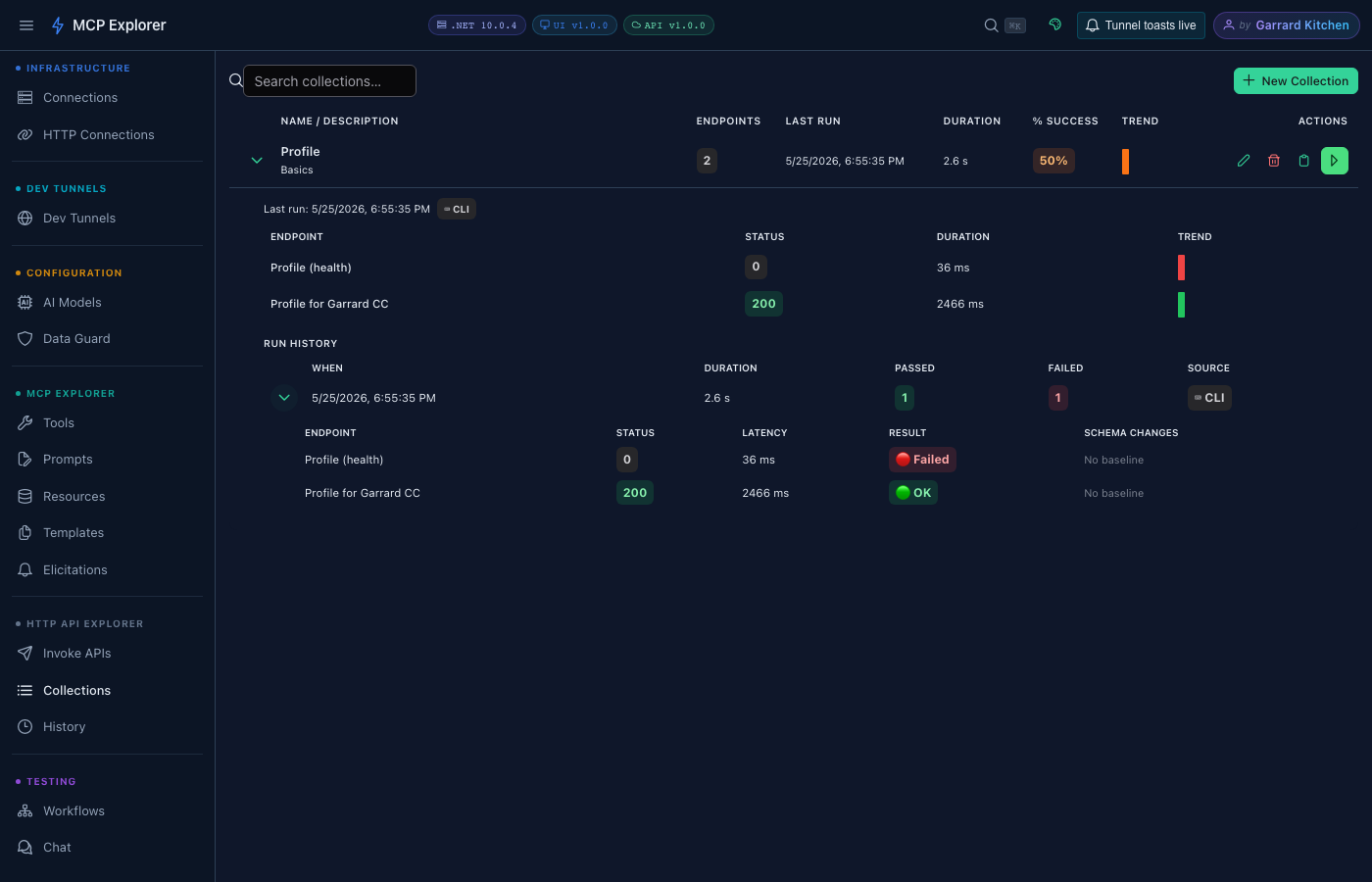
| Column | Description |
|---|---|
| When | Relative timestamp of the run |
| Duration | Total elapsed time for the full collection run |
| Passed | Number of endpoints that passed |
| Failed | Number of endpoints that failed or had breaking schema changes |
| Source | ⌨ CLI or 🖥 App — where the run was triggered |
Expand any history row to see the same per-endpoint detail table as the run result dialog — including schema diff badges and error messages.
Tip: Run history is lazy-loaded on first expand and invalidated after each new run, so the table always reflects the latest data without an explicit page refresh.
Sparkline Trend
The Collections list also shows a Trend sparkline column for each collection — a mini bar chart of the last 10 total collection run durations. Bar colour reflects the overall health of that run (green = all passed, orange = some drift, red = failures).
Running from the CLI
  # Run all endpoints and fail CI on breaking schema changes
mcp-http http collection run --name "Regression Suite" --fail-on-breaking

# Run against localhost when the API was saved with a Docker base URL
mcp-http http collection run --name "Regression Suite" --use-localhost --fail-on-breaking

# Run from a custom data directory
mcp-http --data-path "/path/to/data" http collection run --name "Regression Suite" --fail-on-breaking
CLI runs are recorded in history with Source = CLI, so you can distinguish automated runs from manual browser runs in the history table.
See the CLI — API & Collection Commands page for full reference.