Using Elicitations
What are Elicitations?
Some MCP tools need additional user input mid-execution — for example, asking which of several options to proceed with, or requesting a confirmation before a destructive operation. This is the MCP elicitation feature.
MCP Explorer surfaces these requests as inline dialogs that pause the tool execution and wait for your response.
How Elicitations Work
sequenceDiagram
    participant U as User
    participant App as MCP Explorer
    participant T as MCP Tool

    U->>App: Invoke tool
    App->>T: Tool call
    T-->>App: Elicitation request (needs input)
    App-->>U: Show inline input dialog
    U->>App: Provide response
    App->>T: Continue with user input
    T-->>App: Tool result
    App-->>U: Display result
Responding to an Elicitation
When a tool makes an elicitation request, an inline prompt appears within the tool card:
- Read the prompt — the tool explains what input it needs
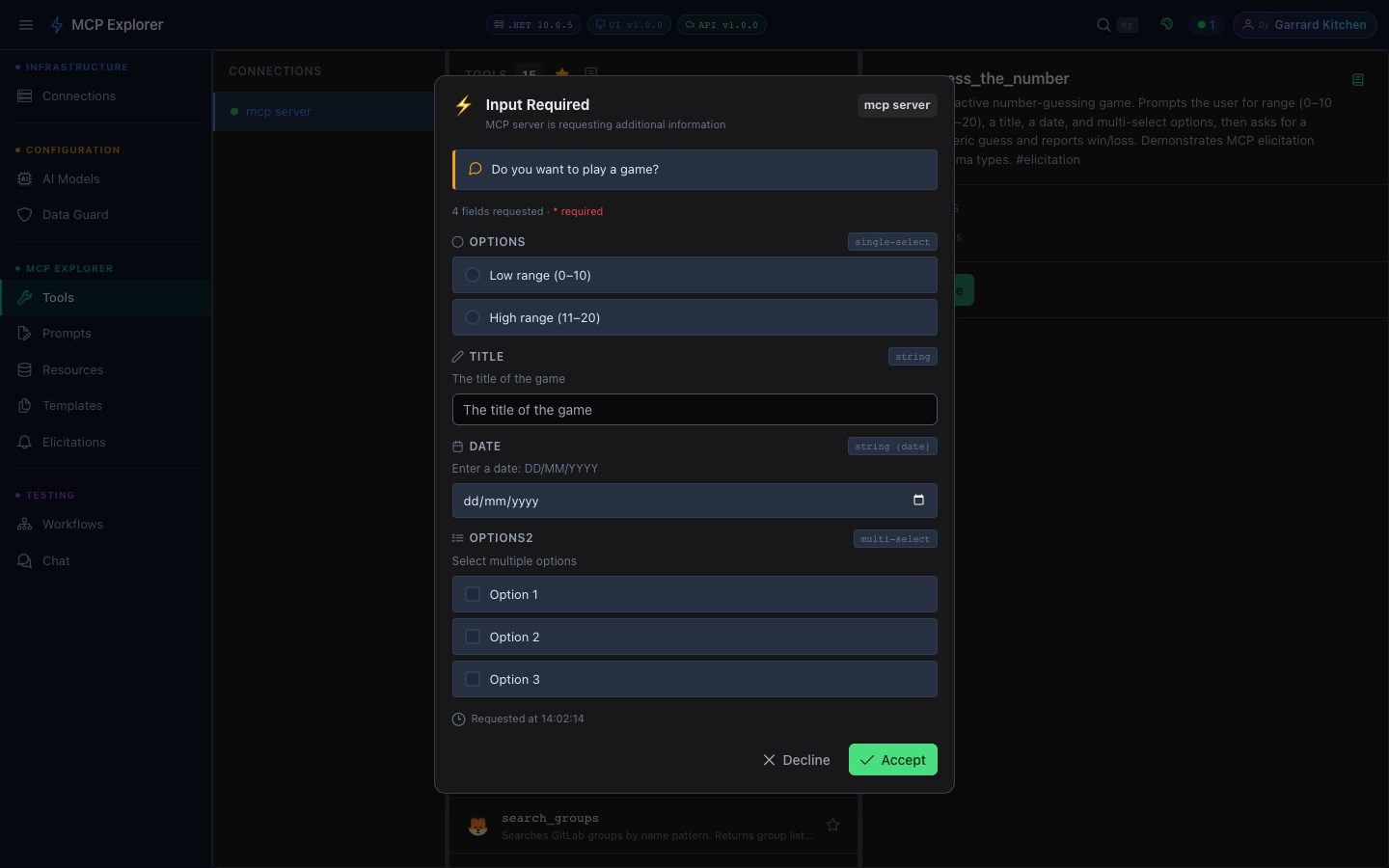
The guess_the_number tool asks for a range, a title, a date, and multi-select options — all in one elicitation form.
- Fill in the form — the form type depends on what the tool requests:
| Input Type | UI Control | When Used |
|---|---|---|
| Short text | Text input | Single-line string |
| Long text | Textarea | Multi-line content |
| Yes/No | Toggle / radio | Boolean confirmation |
| One of few options (≤3) | Radio buttons | Small enum choice |
| One of many options (>3) | Dropdown | Large enum list |
| Multiple selections | Multi-select | Array of choices |
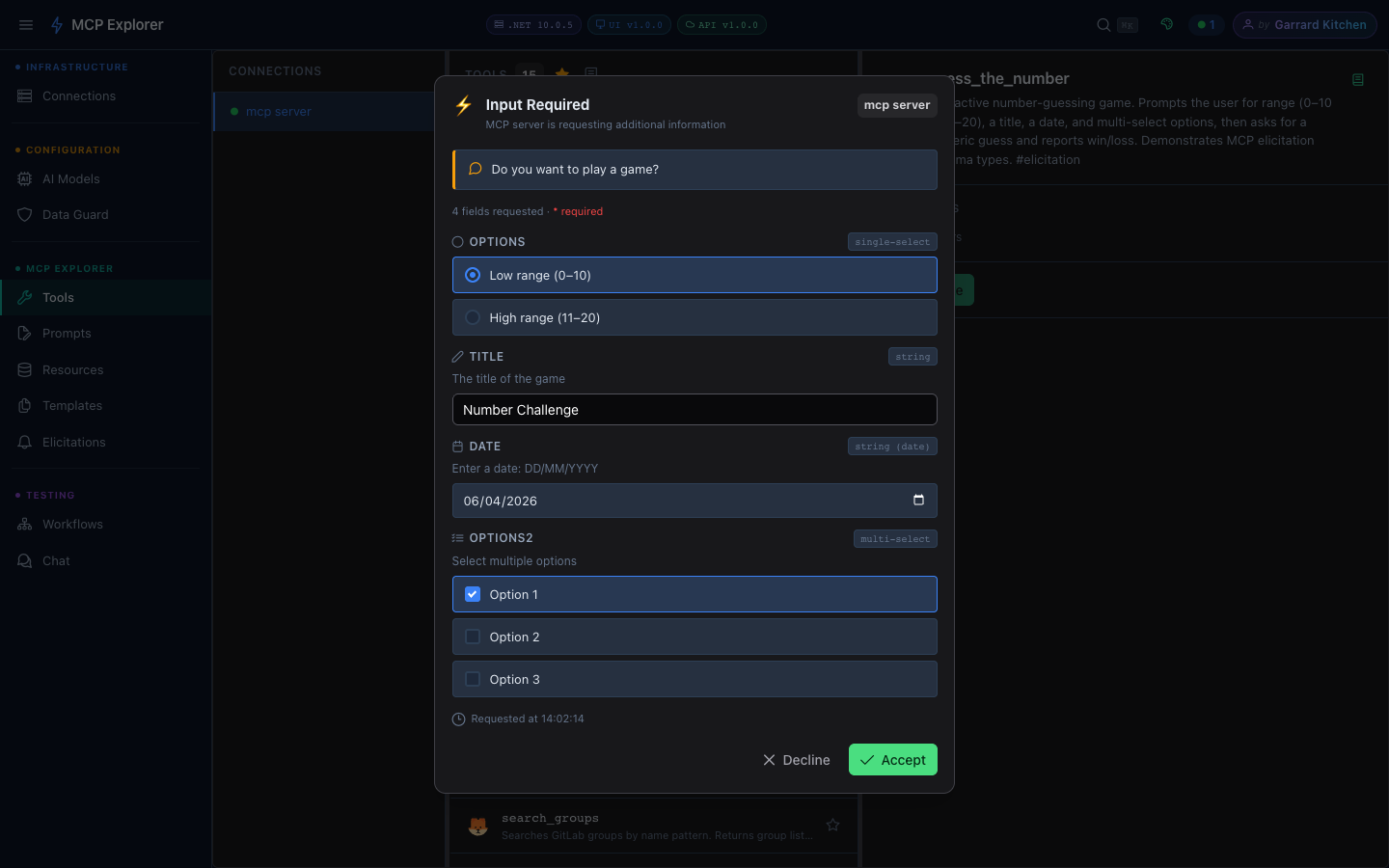
Fill in all the form fields — radio buttons, text inputs, date pickers, and multi-select checkboxes are all supported.
- Click Accept to continue the tool — or Decline to cancel the elicitation
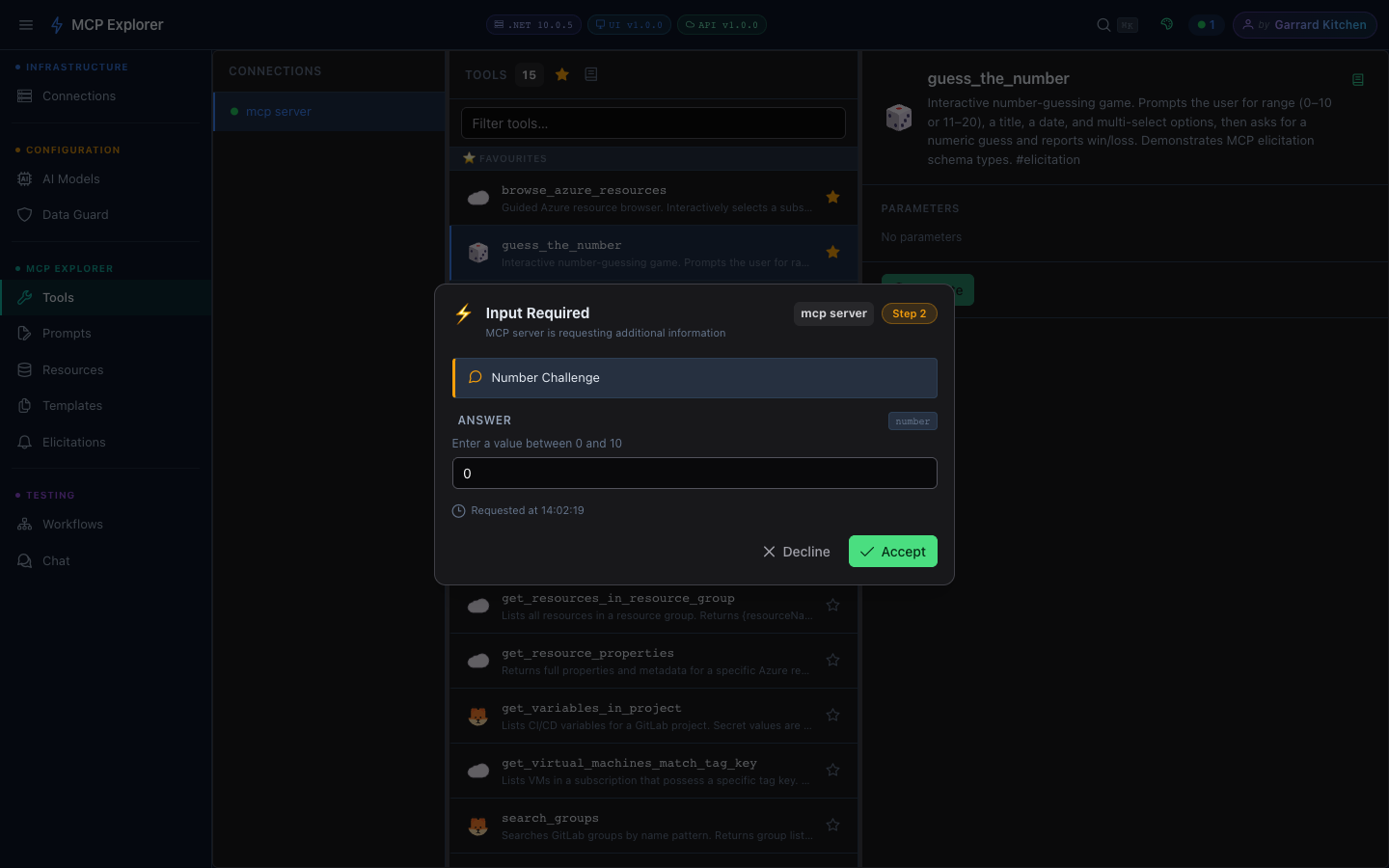
After the first response, the tool may make a second elicitation request — here asking for the actual numeric guess.
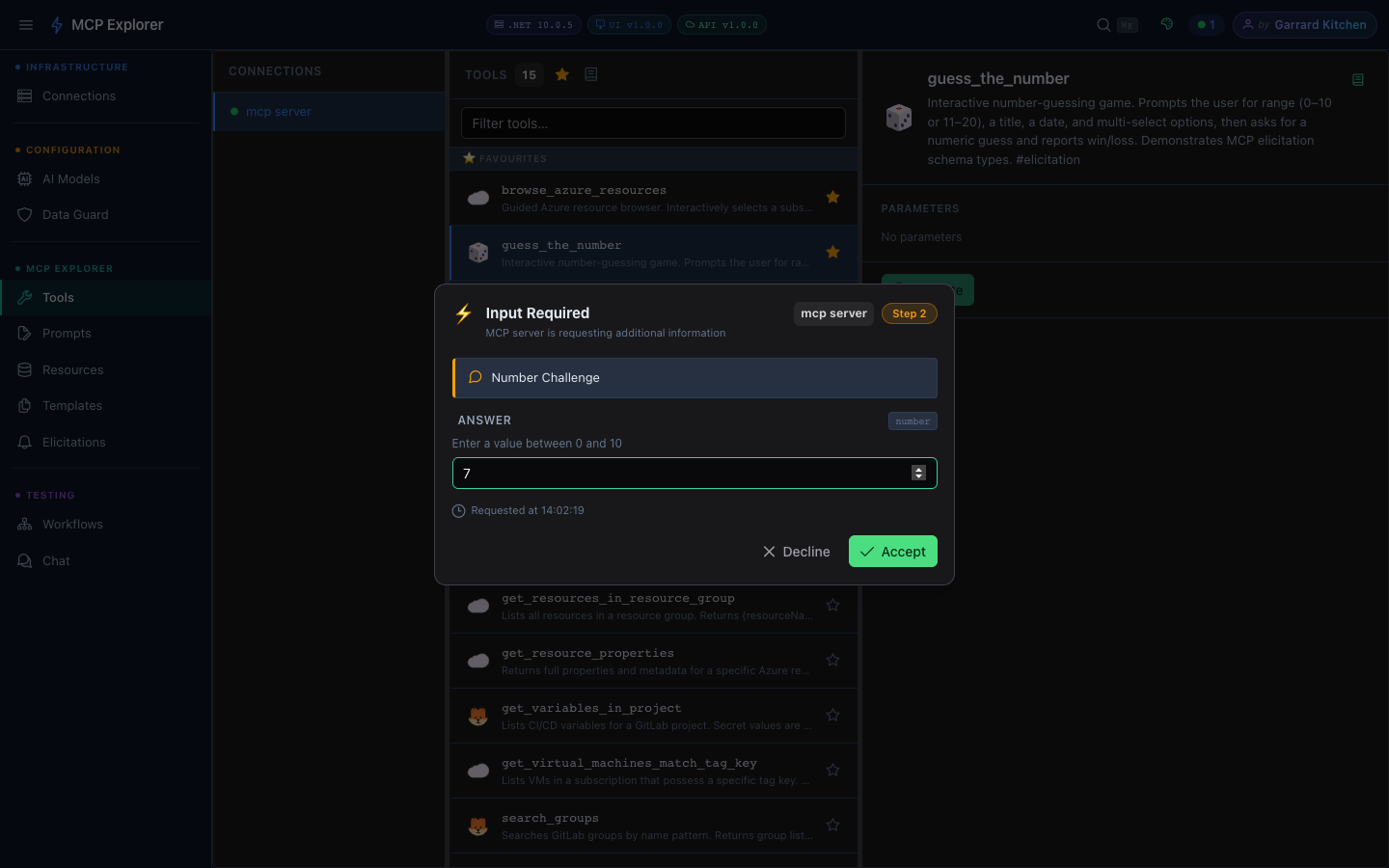
Enter the value and click Accept to submit.
- The tool receives your input and continues execution
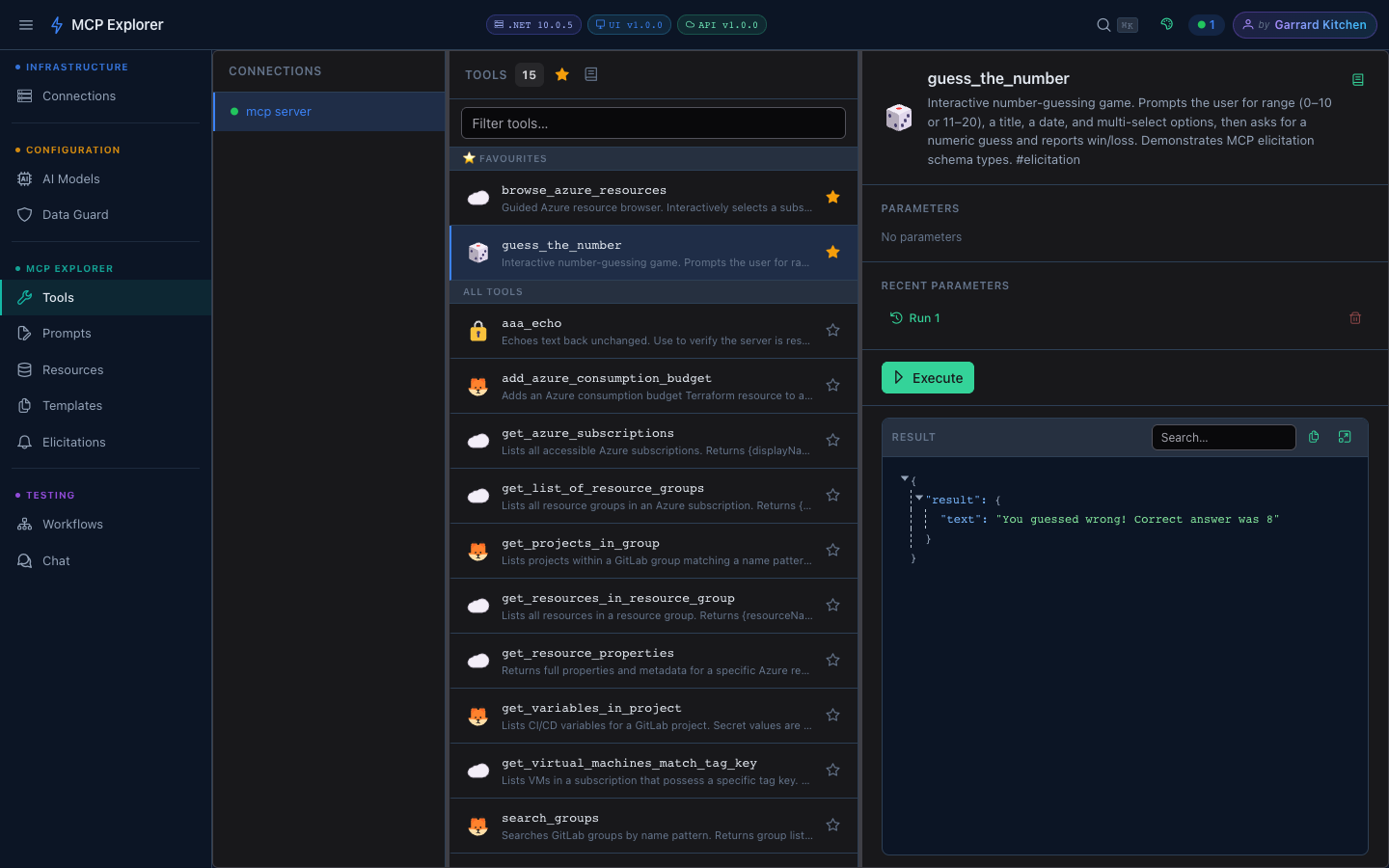
The final tool result appears after all elicitation steps are complete.
Declining an Elicitation
Click Decline to reject the elicitation. The tool will receive a declined response and may abort or continue with a default value, depending on how it’s implemented.
Elicitation History
The Elicitations page shows all past elicitation requests across sessions:
- The tool that requested it
- The prompt text
- Your response (or “Declined”)
- Timestamp
This is useful for auditing what data you’ve provided to tools.
Tips
- Elicitations are tool-server-defined — the prompt text and available options come from the MCP server
- If a tool frequently elicits the same input, consider whether it supports default parameter values that could skip the elicitation