Managing Connections
Overview
The Connections page is your hub for all MCP server connections. From here you can add new servers, edit existing ones, group them logically, and connect or disconnect at any time.
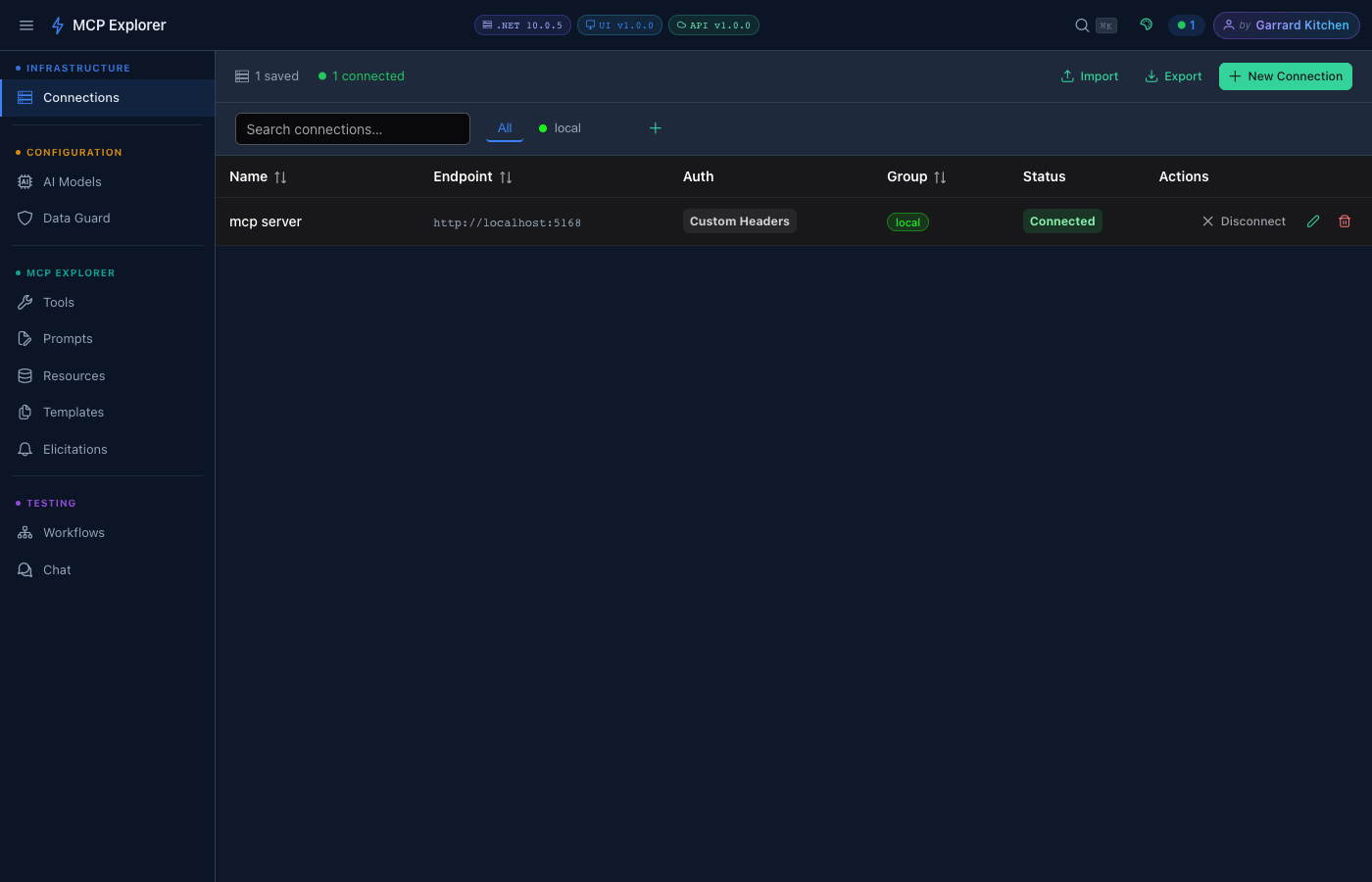
The Connections page lists all saved MCP servers with live health indicators, transport type, and connection toggles. Use the toolbar to add, import, or export connections.
Creating a Connection
- Click New Connection in the top-right corner
- Fill in the connection form:
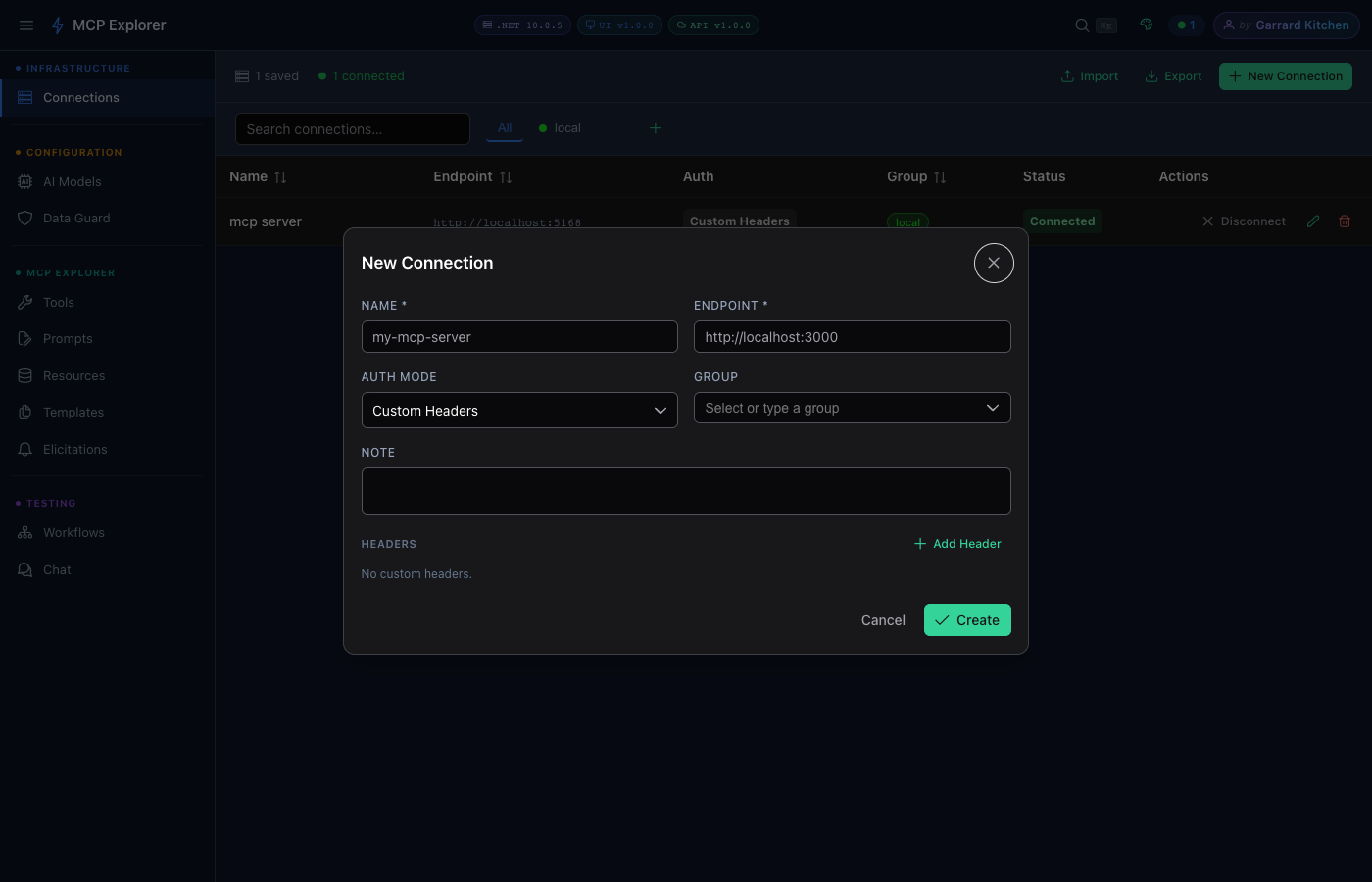
The connection form uses Streamable HTTP transport, with optional custom headers and OAuth/Azure credentials.
| Field | Required | Description |
|---|---|---|
| Name | ✅ | A friendly display name |
| Endpoint URL | ✅ | The MCP server URL |
| Transport | — | Streamable HTTP (the only supported transport) |
| Group | ❌ | Assign to a named group for organisation |
| Description | ❌ | Free-text notes |
| Headers | ❌ | Custom HTTP headers (e.g. Authorization: Bearer ...) |
- Click Save — the connection appears in the list immediately.
Connecting & Disconnecting
Click the toggle next to any connection to connect or disconnect. The sidebar shows an active connections badge with a live count.
Editing a Connection
Click the pencil icon on any connection row to edit all fields including the name, URL, transport, and headers.
Deleting a Connection
Click the trash icon and confirm the deletion dialog. This is permanent.
Duplicating a Connection
Click the Copy icon on any connection row to open the New Connection dialog pre-populated with all fields from the selected connection and a unique Copy of … name. Edit any fields you need to change and click Save — the duplicate is added as a new, independent connection.
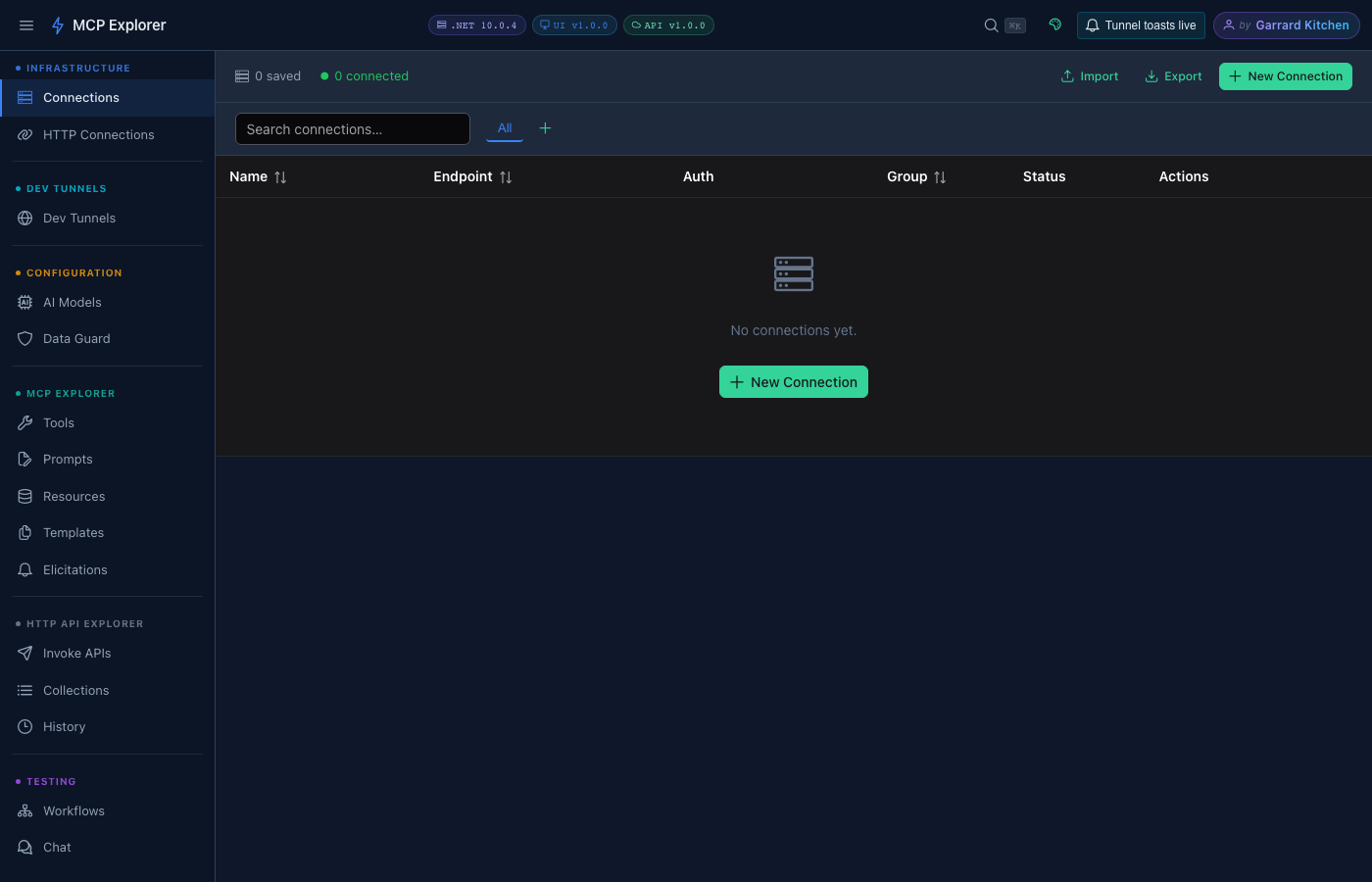
The Copy icon creates a pre-filled connection form. Useful for testing the same server with different auth modes or headers.
Grouping Connections
Assign connections to named groups to keep your list organised. Groups appear as filter tabs above the connections list. Useful when working with many servers across different projects.
Click the + icon next to the group tabs to create a new group — give it a name and optionally pick a colour:
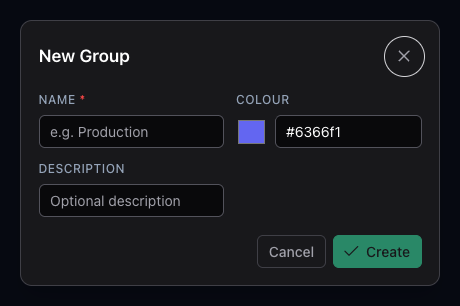
The New Group dialog. Enter a name and pick an accent colour, then click Create. You can then assign connections to the group via the Group field in the connection form.
Import & Export
You can export all your connections to an encrypted JSON file and import them on another machine or share with a team.
- Export: Click Export Connections in the top toolbar → enter an encryption passphrase → download the
.jsonfile - Import: Click Import Connections → select the file → enter the passphrase → connections are merged
info: The export file is AES-256 encrypted. Without the passphrase it cannot be read.
Connection Health
Each connection row shows a live health indicator:
- 🟢 Connected — server is live and responding
- 🔴 Disconnected — not connected
- 🟡 Error — connection attempt failed (hover for the error message)
Authentication Modes
MCP Explorer supports three authentication modes when connecting to protected MCP servers.
Custom Headers
Add any HTTP headers to every request — useful for static bearer tokens, API keys, or proprietary auth schemes.
| Header | Example Value |
|---|---|
Authorization | Bearer eyJ... |
X-Api-Key | sk-... |
When adding an Authorization header, the form offers three modes to prevent double-prefixing:
| Mode | Behaviour |
|---|---|
| Raw | Value sent exactly as typed — use for custom schemes or pre-formed values |
| Bearer | Automatically prepends Bearer unless already present |
| Basic | Automatically prepends Basic unless already present |
Azure Client Credentials
Authenticate using an Entra ID (Azure AD) app registration. MCP Explorer obtains an OAuth 2.0 client-credentials token and attaches it to every request.
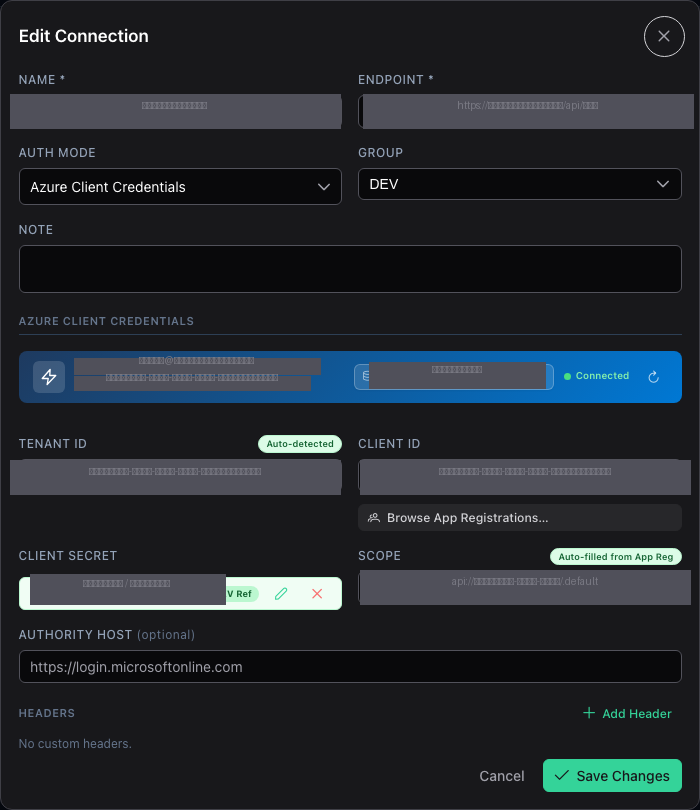
| Field | Description |
|---|---|
| Tenant ID | Your Entra tenant. Auto-populated from az account show when Azure is connected. Changes automatically when you switch subscription. |
| Client ID | The app registration’s Application (client) ID. Use the Browse App Registrations button to pick it from a searchable list. |
| Client Secret | The app secret. Type it manually, or use the Key Vault picker to reference a secret stored in Azure Key Vault. |
| Scope | The OAuth scope — e.g. api://<resource-id>/.default. Auto-filled when you pick an App Registration. |
| Authority Host | Optional. Defaults to https://login.microsoftonline.com. Override for sovereign clouds (e.g. Azure China, US Gov). |
Azure Context Banner
When Azure Client Credentials mode is selected, a banner appears at the top of the form showing your signed-in account and a subscription dropdown. This dropdown:
- Lists all Azure subscriptions your credential has access to
- Scopes the Key Vault picker to the selected subscription
- Updates the Tenant ID field automatically when you switch subscription
- Persists — the selected subscription is saved with the connection and automatically restored when you edit it again
tip: In Docker, set
HOST_AZURE_CONFIG_DIR=~/.azurein your.envfile to mount your localaz loginsession into the container. See Environment Variables for details.
Browse App Registrations
Click the Browse App Registrations… button next to the Client ID field to open a searchable picker showing all Entra app registrations visible to your credential:
- Search by display name or App ID
- When editing an existing connection, the picker pre-selects and scrolls to the matching app registration
- Selecting an app automatically fills Client ID and derives the Scope as
api://<firstApiResourceId>/.default
Key Vault Secret Picker
Click Pick from Key Vault… next to the Client Secret field to browse your Key Vault secrets without ever seeing the secret value:
Step 1 — Select a Key Vault
A searchable list of all Key Vaults in the selected subscription is shown. The vault is filtered by the subscription selected in the Azure Context Banner.
Step 2 — Select a secret
All secret names in the chosen vault are listed (names only — values are never retrieved or stored).
The connection stores a KeyVaultSecretReference (vaultName + secretName). At runtime, the API resolves the actual secret value via DefaultAzureCredential — the plaintext secret is never persisted to disk.
When editing a connection that already has a KV reference, the picker pre-selects the vault and secret automatically.
OAuth
Use OAuth 2.0 PKCE or client-credentials flow for connections that require interactive or automated OAuth authentication.
| Field | Description |
|---|---|
| Client ID | Your OAuth client ID. Use the Browse App Registrations button to pick from Entra. |
| Client Secret | Optional client secret. Use the Key Vault picker to avoid storing it in plain text. |
| Redirect URI | The OAuth callback URL registered with your identity provider. |
| Scopes | Space-separated list of OAuth scopes to request. |
| Client Metadata Document URI | Optional. URL of the OAuth client metadata document (RFC 7591). |
The Azure Context Banner and Key Vault / App Registration pickers are also available in the OAuth section — the same subscription selection and auto-population behaviour applies.