Managing Connections
Overview
The Connections page is your hub for all MCP server connections. From here you can add new servers, edit existing ones, group them logically, and connect or disconnect at any time.
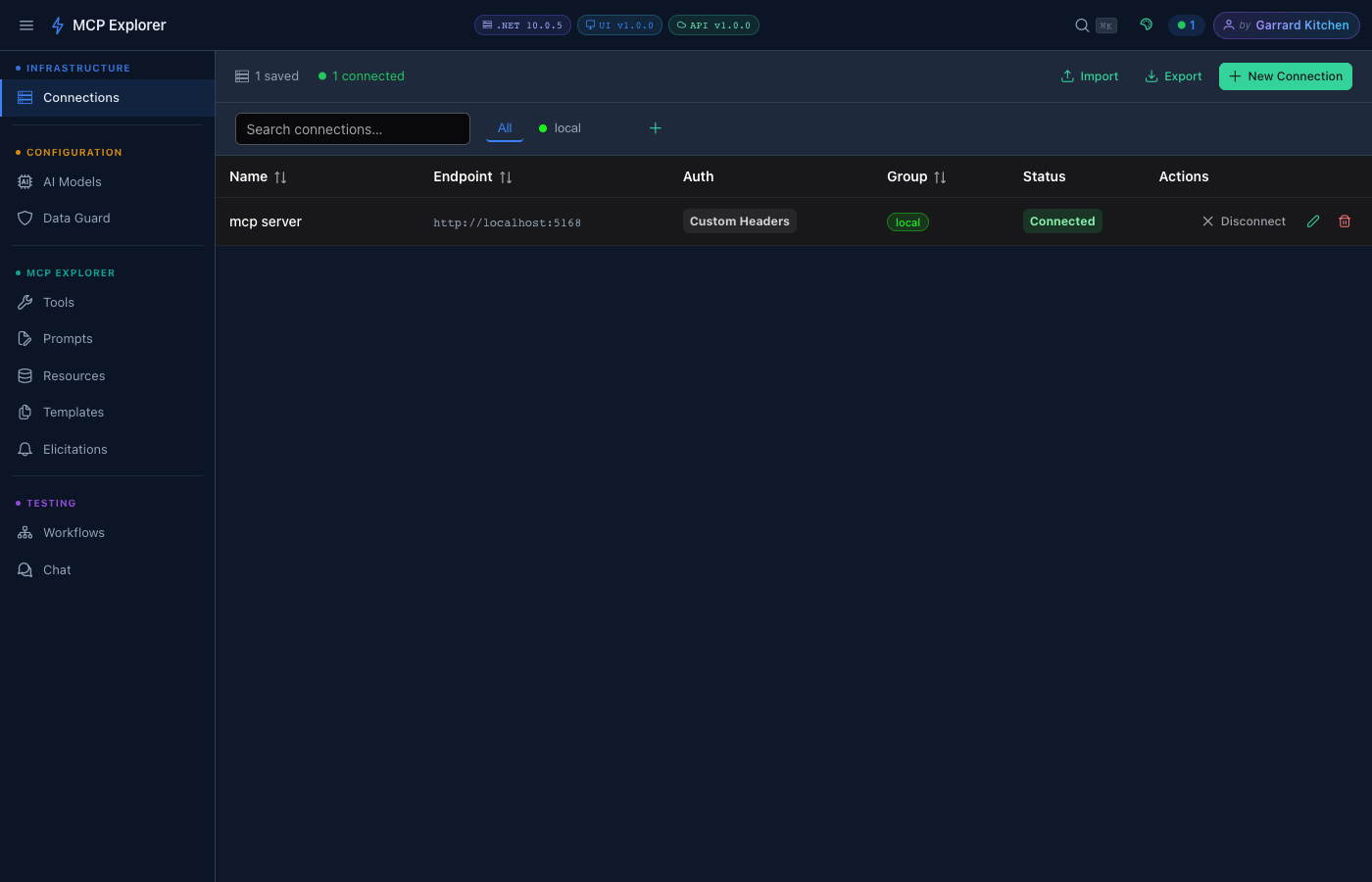
The Connections page lists all saved MCP servers with live health indicators, transport type, and connection toggles. Use the toolbar to add, import, or export connections.
Creating a Connection
- Click New Connection in the top-right corner
- Fill in the connection form:
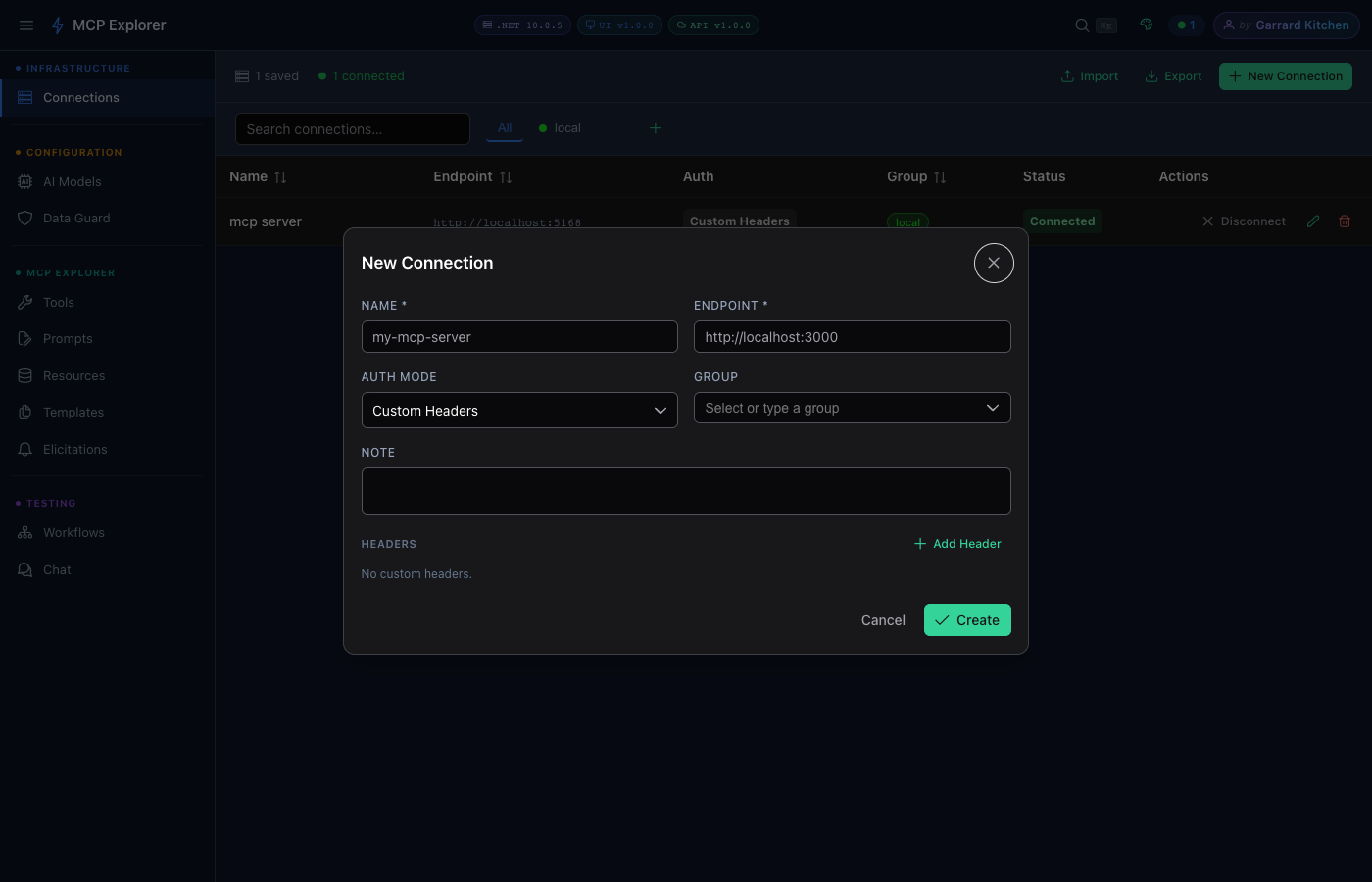
The connection form supports stdio, SSE, and HTTP transports, with optional custom headers and OAuth/Azure credentials.
| Field | Required | Description |
|---|---|---|
| Name | ✅ | A friendly display name |
| Endpoint URL | ✅ | The MCP server URL (for SSE/HTTP) or command (for stdio) |
| Transport | ✅ | stdio, sse, or http |
| Group | ❌ | Assign to a named group for organisation |
| Description | ❌ | Free-text notes |
| Headers | ❌ | Custom HTTP headers (e.g. Authorization: Bearer ...) |
- Click Save — the connection appears in the list immediately.
Connecting & Disconnecting
Click the toggle next to any connection to connect or disconnect. The sidebar shows an active connections badge with a live count.
Editing a Connection
Click the pencil icon on any connection row to edit all fields including the name, URL, transport, and headers.
Deleting a Connection
Click the trash icon and confirm the deletion dialog. This is permanent.
Grouping Connections
Assign connections to named groups to keep your list organised. Groups appear as collapsible sections in the connections list. Useful when working with many servers across different projects.
Import & Export
You can export all your connections to an encrypted JSON file and import them on another machine or share with a team.
- Export: Click Export Connections in the top toolbar → enter an encryption passphrase → download the
.jsonfile - Import: Click Import Connections → select the file → enter the passphrase → connections are merged
info: The export file is AES-256 encrypted. Without the passphrase it cannot be read.
Connection Health
Each connection row shows a live health indicator:
- 🟢 Connected — server is live and responding
- 🔴 Disconnected — not connected
- 🟡 Error — connection attempt failed (hover for the error message)