Chat Overview
Overview
The Chat view gives you a streaming conversation interface backed by any LLM you’ve configured. What makes it powerful is automatic MCP tool calling — the LLM can invoke any tool from your active connections mid-conversation, and MCP Explorer handles the round-trip transparently.
Starting a Chat
- Click New Session in the left sidebar to create a fresh conversation
- Select which Connections to make available for tool calling from the multiselect dropdown
- Choose your Model (defaults to GPT-4o)
- Type your message and press Ctrl+Enter or click the Send button
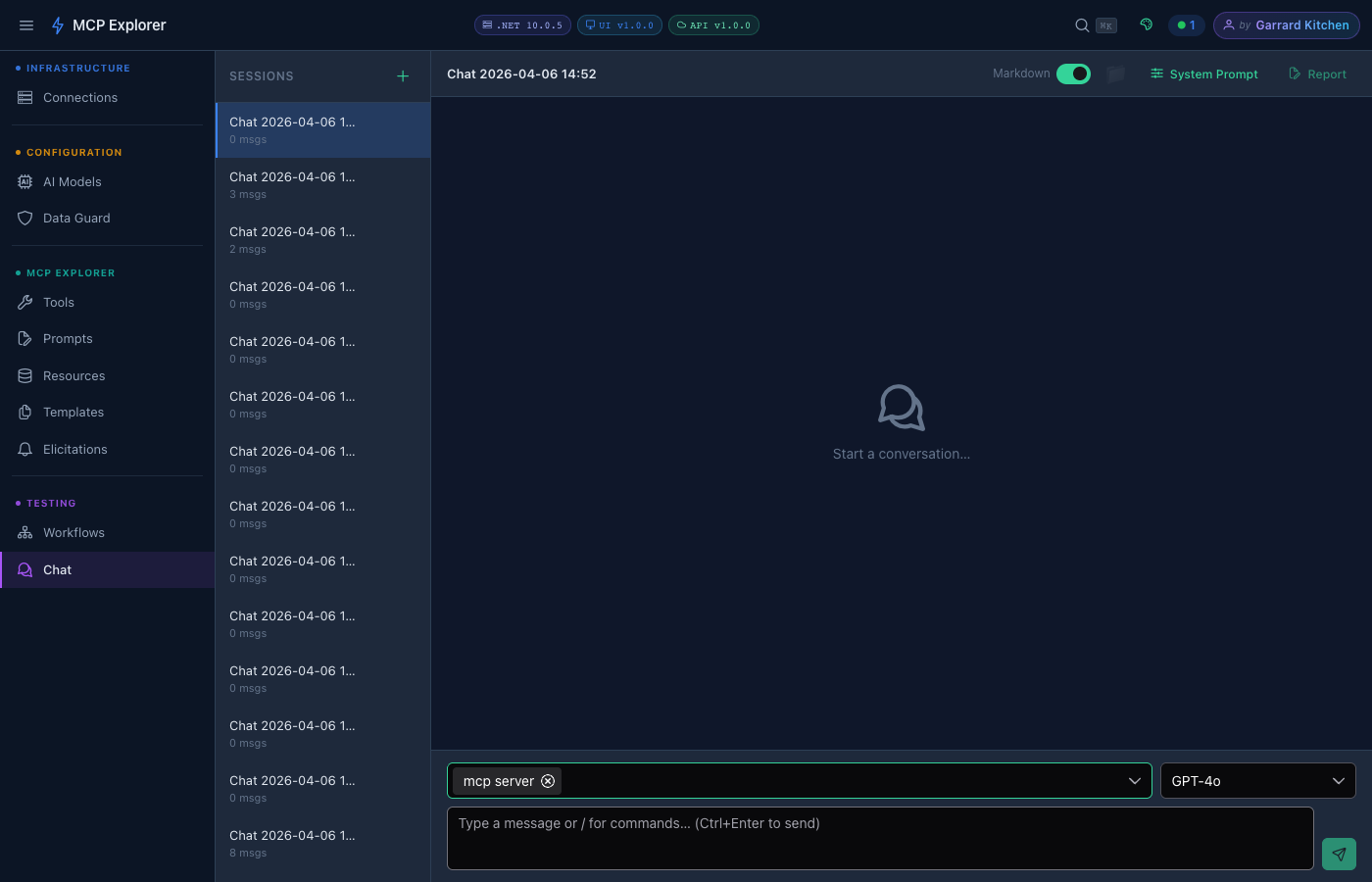
A new chat session with the mcp server connection selected. The connection badge appears next to the model selector, confirming the LLM has access to all MCP tools from that server.
Sending a Message
Type your message in the input box at the bottom of the chat area. Responses stream in real time — you see tokens appearing as the model generates them. Token usage (input ↑ / output ↓) is shown under each assistant response.
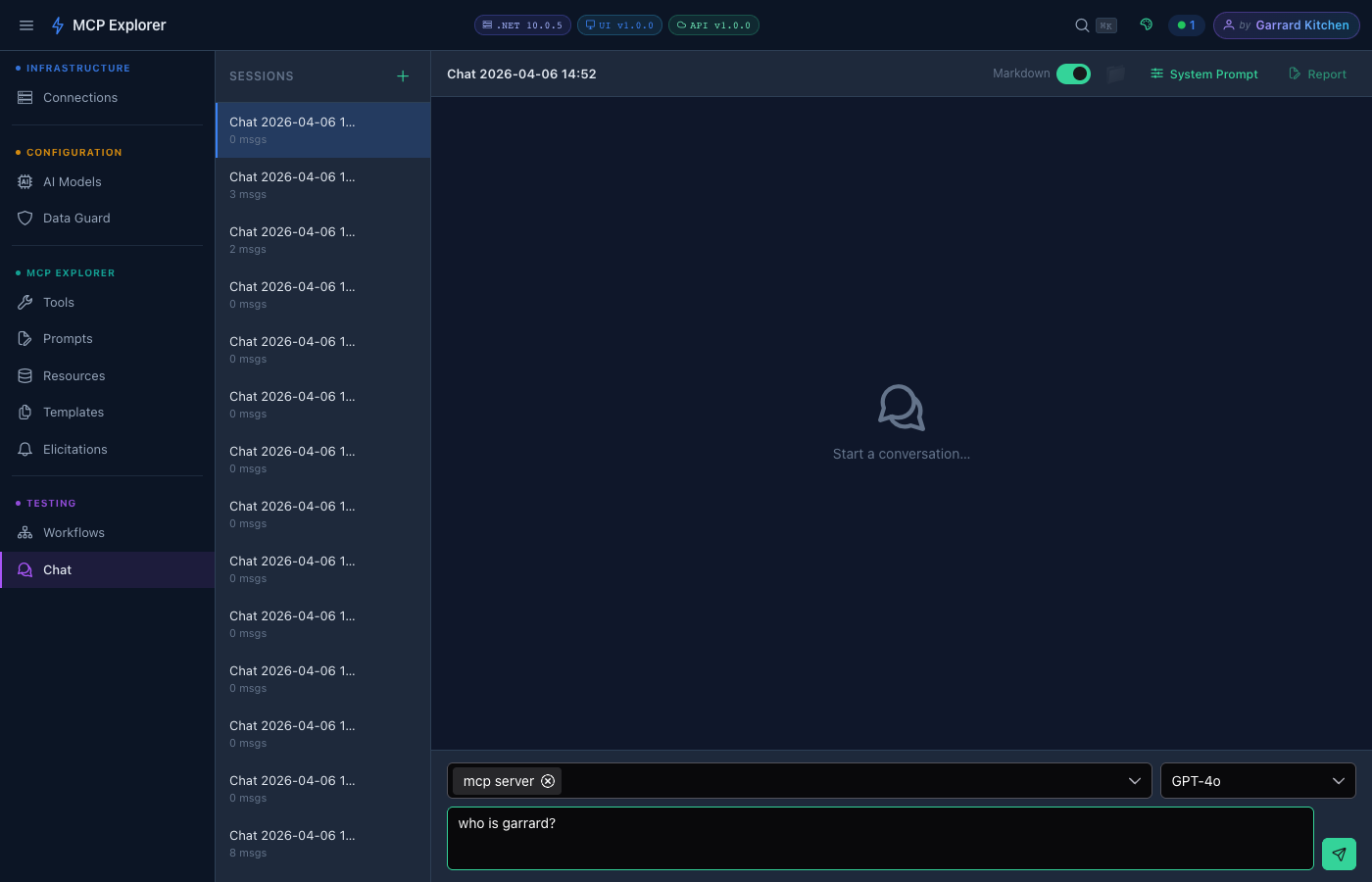
“who is garrard?” ready to send. Press Ctrl+Enter to submit.
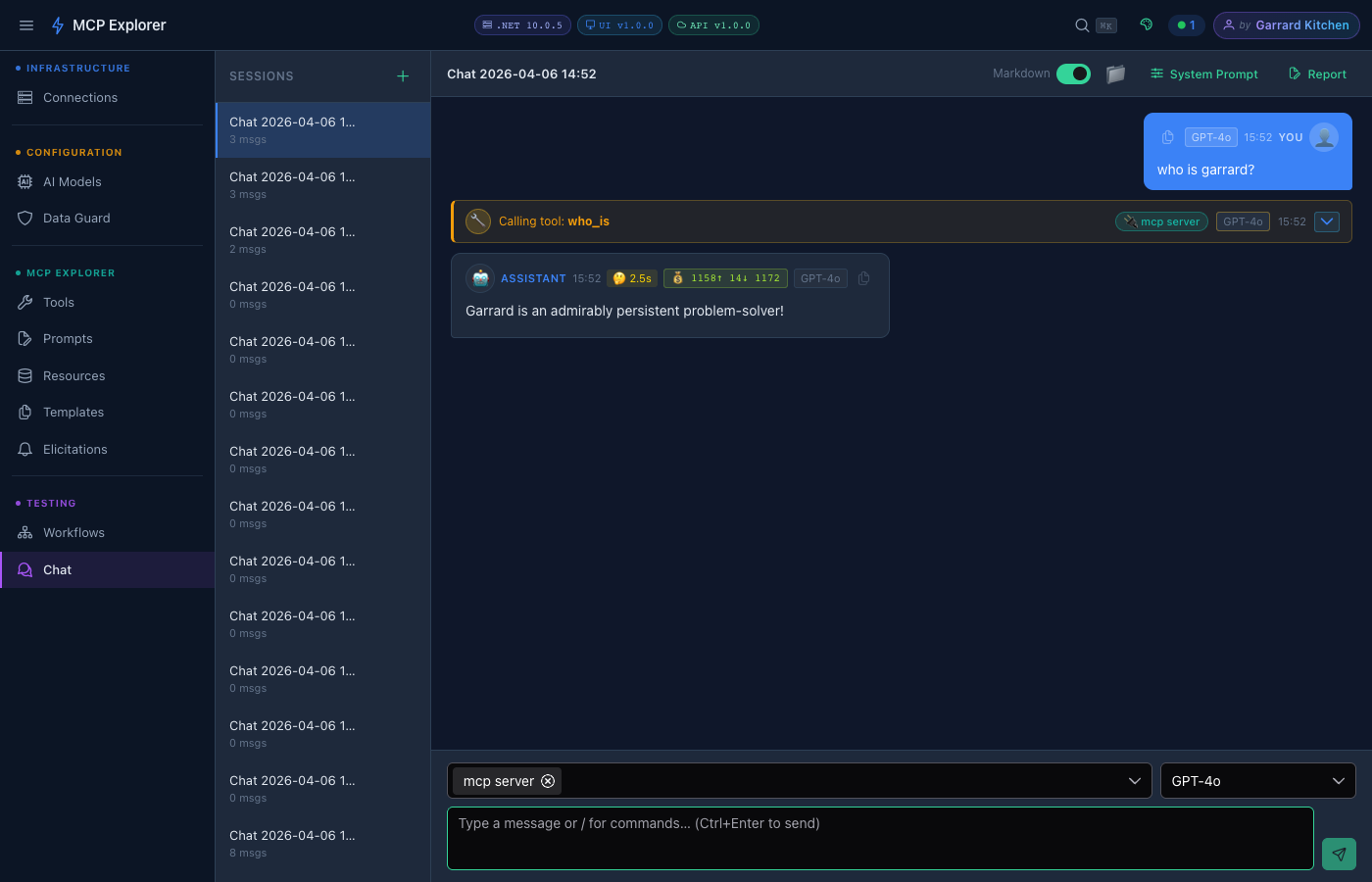
GPT-4o’s streamed response to “who is garrard?”. Notice the 🔧 Calling tool: who_is badge — the model automatically invoked an MCP tool mid-conversation to answer the question. Thinking time (🤔 2.5s) and token cost (💰 1158↑ 14↓) are shown beneath the message.
Slash Commands
Type / in the message input to open the command palette. All available commands appear with descriptions — navigate with ↑↓ arrow keys, press Enter to select, or Esc to dismiss.
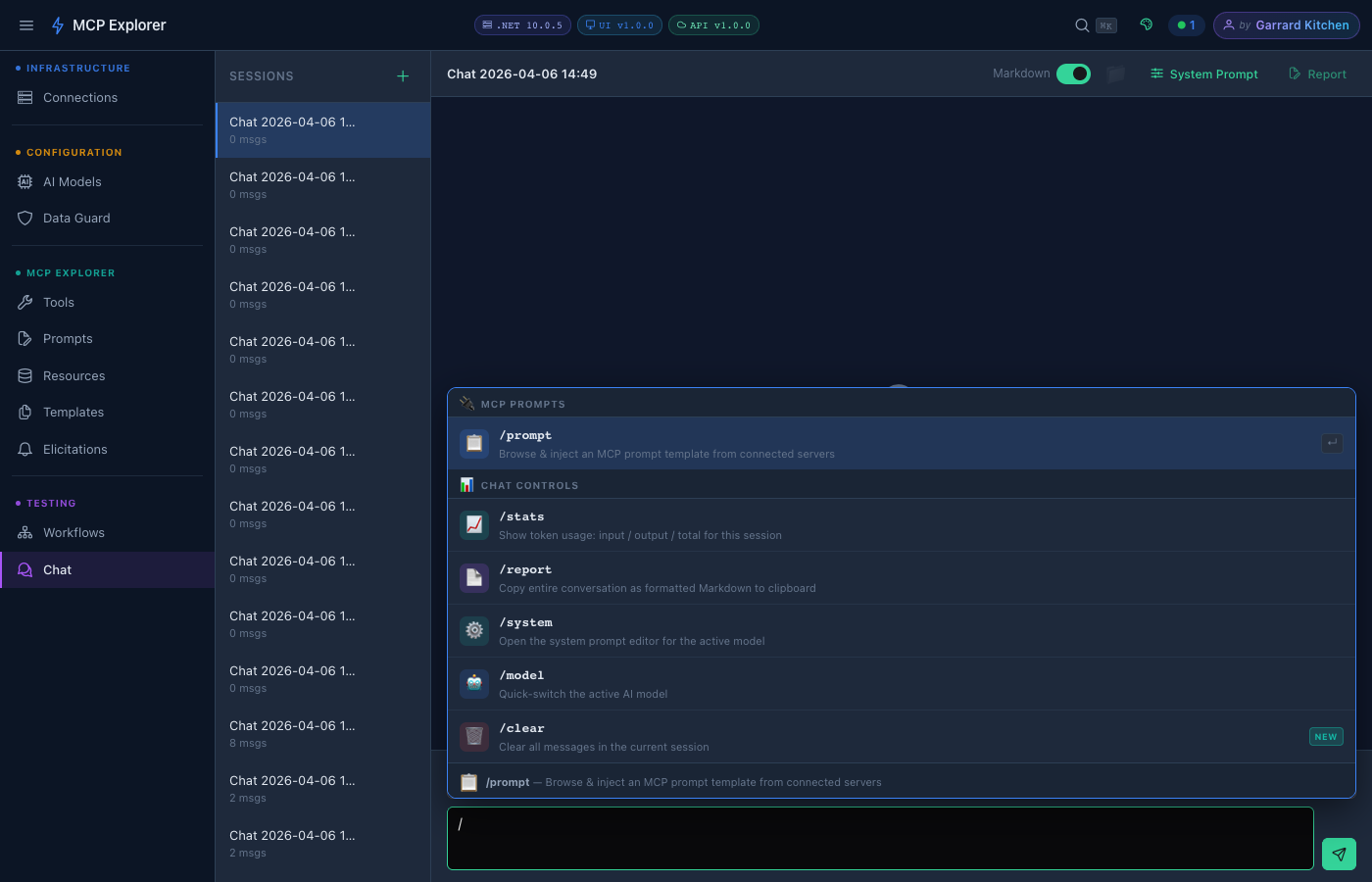
Typing / reveals the full command palette with categories for MCP Prompts and Chat Controls.
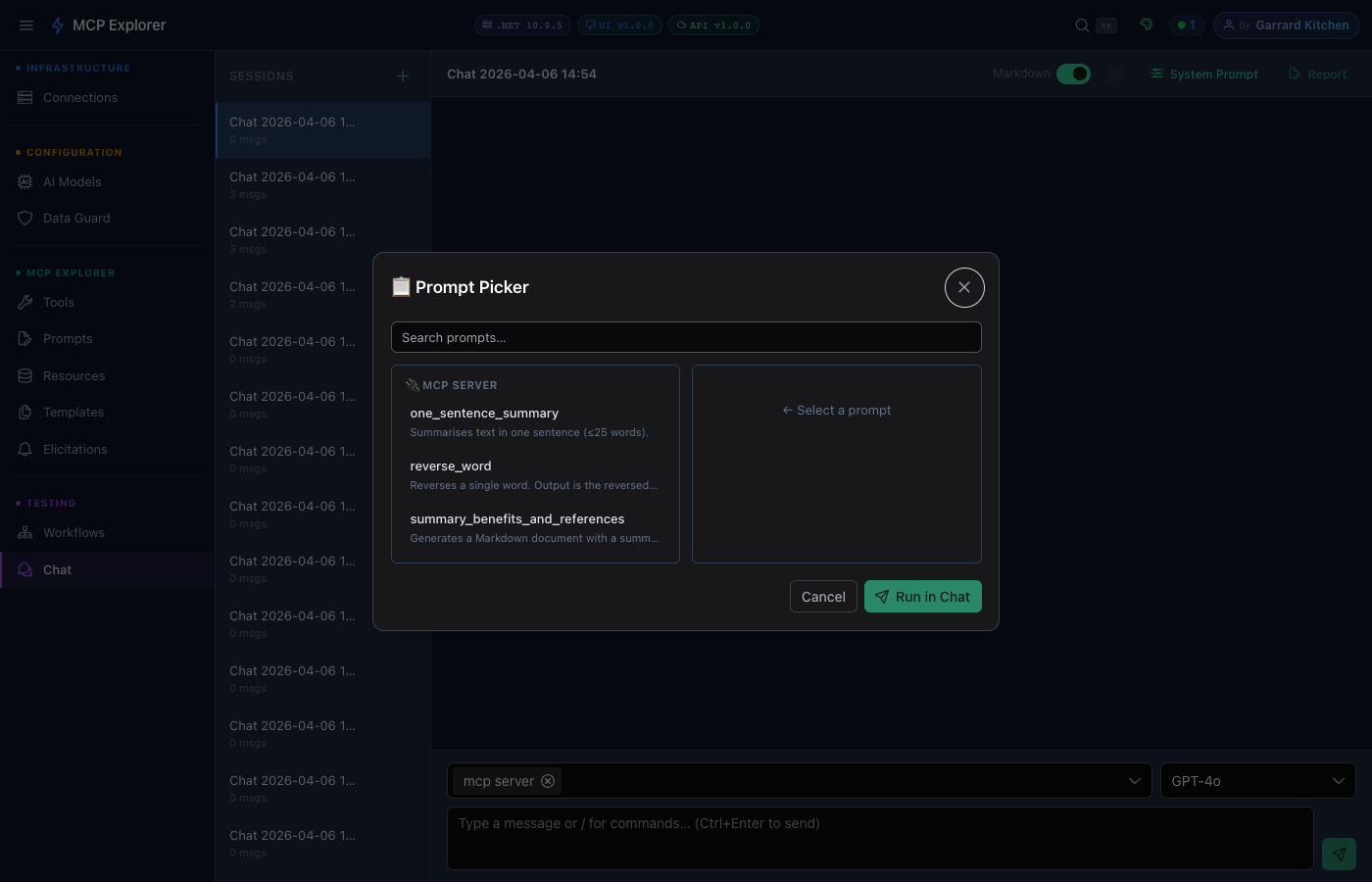
After pressing Enter on /prompt, the Prompt Picker dialog opens. Select any MCP prompt from the connected server, fill in its arguments, then click Run in Chat to inject it directly into the conversation.
| Command | Description |
|---|---|
/prompt | Browse & inject an MCP prompt template from connected servers |
/stats | Show token usage: input / output / total for this session |
/report | Copy entire conversation as formatted Markdown to clipboard |
/system | Open the system prompt editor for the active model |
/model | Quick-switch the active AI model |
/clear | Clear all messages in the current session |
Tool Calling
When the LLM decides to use a tool, MCP Explorer:
- Shows an active tool badge indicating which tool is running
- Sends the tool call to the appropriate MCP server
- Returns the result to the LLM to continue its response
Tool call details (inputs and outputs) are shown inline in the message stream — fully expandable.
Token Usage
Each LLM response shows a token usage summary:
- Prompt tokens — input sent to the model
- Completion tokens — tokens in the response
- Total — combined
Conversation Management
- New Chat — start a fresh conversation (retains model and connection selection)
- Clear — clear messages without changing settings
- Chat history is persisted per session
Sensitive Data in Chat
MCP Explorer detects and masks sensitive data (API keys, passwords, secrets) in:
- Your messages before they’re sent
- Tool response content before display
Masked values are shown as ●●●●●●●● with a reveal toggle.